
For many people with kidney disease — especially at later stages or on dialysis — keeping an eye on fluid intake matters just as much as watching sodium or potassium. KidneyPal makes it a one-tap habit.
Why Fluids Matter
When kidneys aren’t removing fluid the way they used to, extra fluid can build up between treatments or appointments. That’s why many care teams set a daily fluid target. KidneyPal helps you stay aware of where you stand through the day — but your nephrologist or dietitian knows your situation best, so always follow the numbers they give you.
And remember: “fluid” isn’t just what’s in your glass. Soup, coffee, juice, and milk all count.
The Fluid Tracker
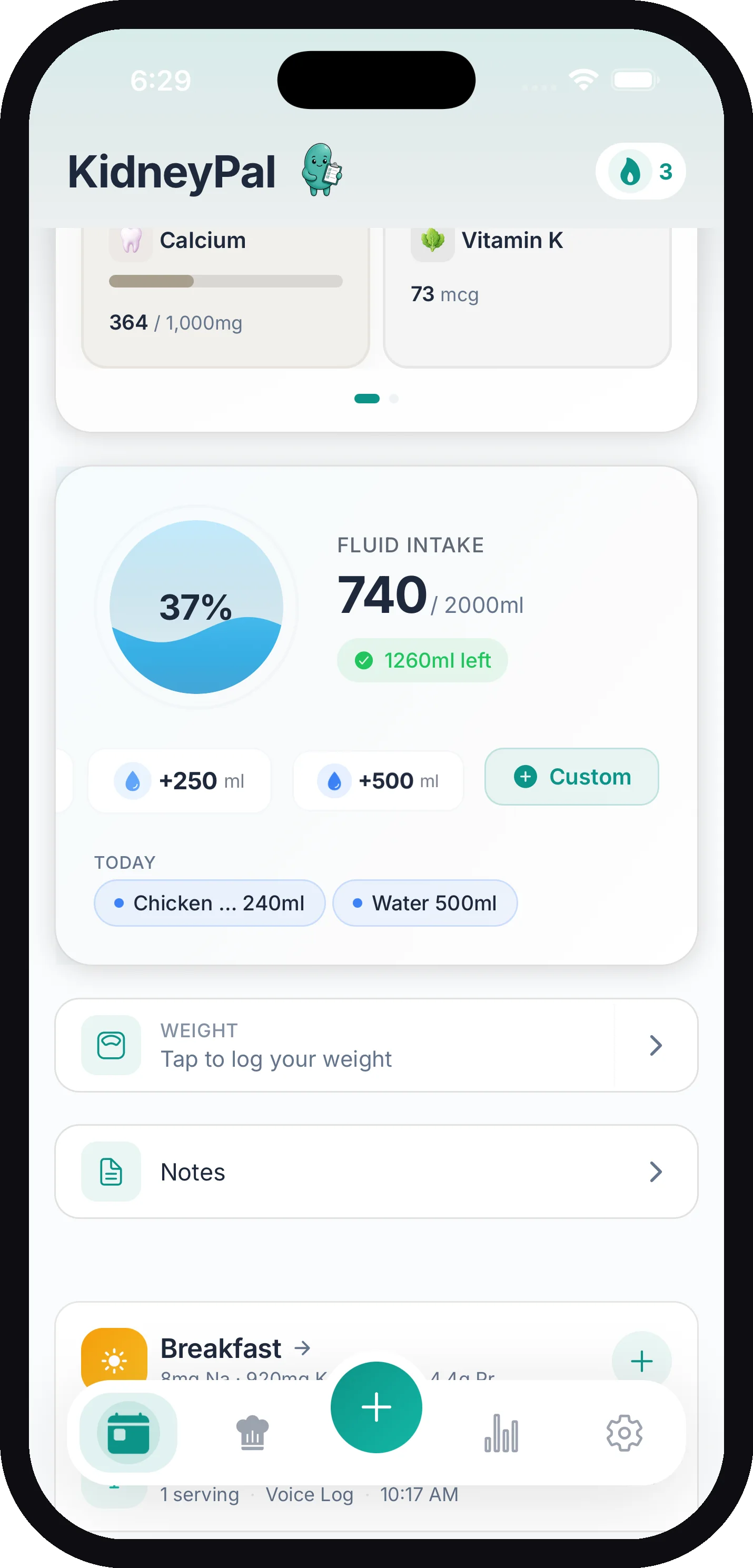
The Fluid Intake card sits right below your nutrient dashboard. A circular wave animation fills up as you drink through the day, with your percentage in the middle and your running total next to your daily limit (for example, 750ml / 1500ml).
A status badge below shows how much you have remaining — and if you pass your limit, it turns red and shows how far over limit you are.
Your most recent drinks appear as a row of pills under the tracker, under a Today header. Each pill shows the drink, the amount, and the time you logged it, newest first — the row holds up to five, so a busy day scrolls sideways. Tap View all on the header to open the Fluid Log: a sheet listing every drink for the day with its time, type, and amount, newest first. Tap any row in the log to edit or remove it (see below).
Logging Water
Water is the fastest thing to log in the whole app:
- Quick Add buttons log a glass in one tap — 100, 250, 330, or 500 ml (or 4, 8, 12, and 16 oz if you prefer ounces). The 330 ml / 12 oz button is sized for a standard can, so a sparkling water is one tap too.
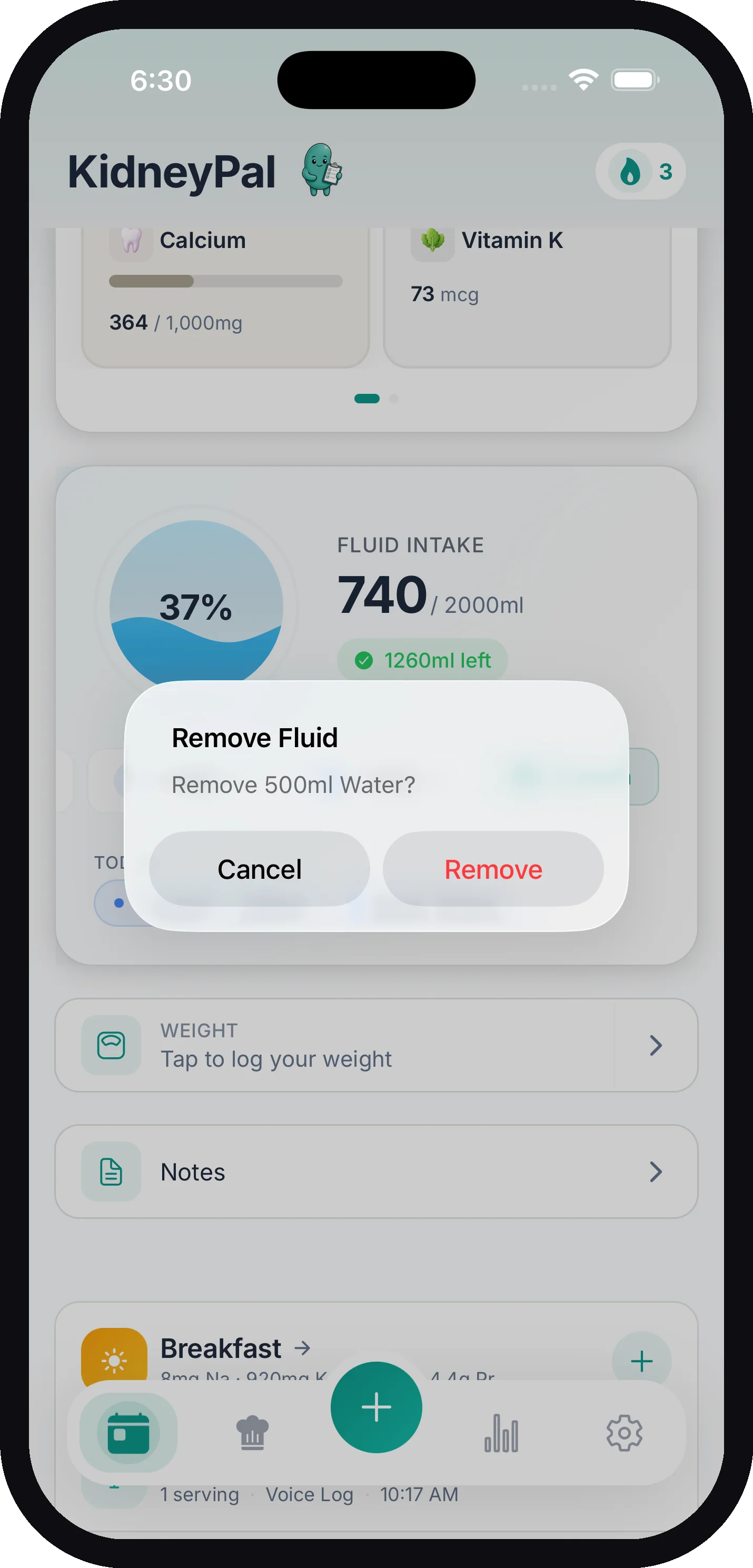
- Custom opens the Add Water sheet, where you can pick a quick amount (up to 750 ml / 24 oz) or type in any amount.
Save Your Own Amounts
Drink from the same bottle or cup every day? Save its size as your own quick-add button:
- Tap Custom to open the Add Water sheet
- Type the amount — say, 18 oz for your water bottle
- Tap Save to Quick Add (the bookmark below the field), then Add
The water is logged, and from then on that amount appears as a star-marked button right on the Fluid Intake card — one tap, done. Your saved amounts also show up in a Saved Amounts row inside the Add Water sheet.
You can save up to 4 amounts. To remove one, press and hold its button and confirm.
Saved amounts are stored with your account, so they sync everywhere you use KidneyPal — including the web app, where the bookmark button next to the custom water field saves an amount and the × on a saved button removes it. They also follow your ml/oz preference automatically if you ever switch units.
Editing or Removing a Drink
Logged the wrong amount, or logged it late? Tap a drink pill under the tracker (or a row in the Fluid Log) to open the Edit Fluid sheet. From there you can:
- Change the amount — the Fluid Amount field is in your unit (ml or oz). Tap Save and the tracker updates.
- Change the time — tap the time button to pick when you actually drank it. Only the clock time changes; the drink always stays on the day it was logged.
- Remove it — tap the trash icon and confirm Remove Fluid.
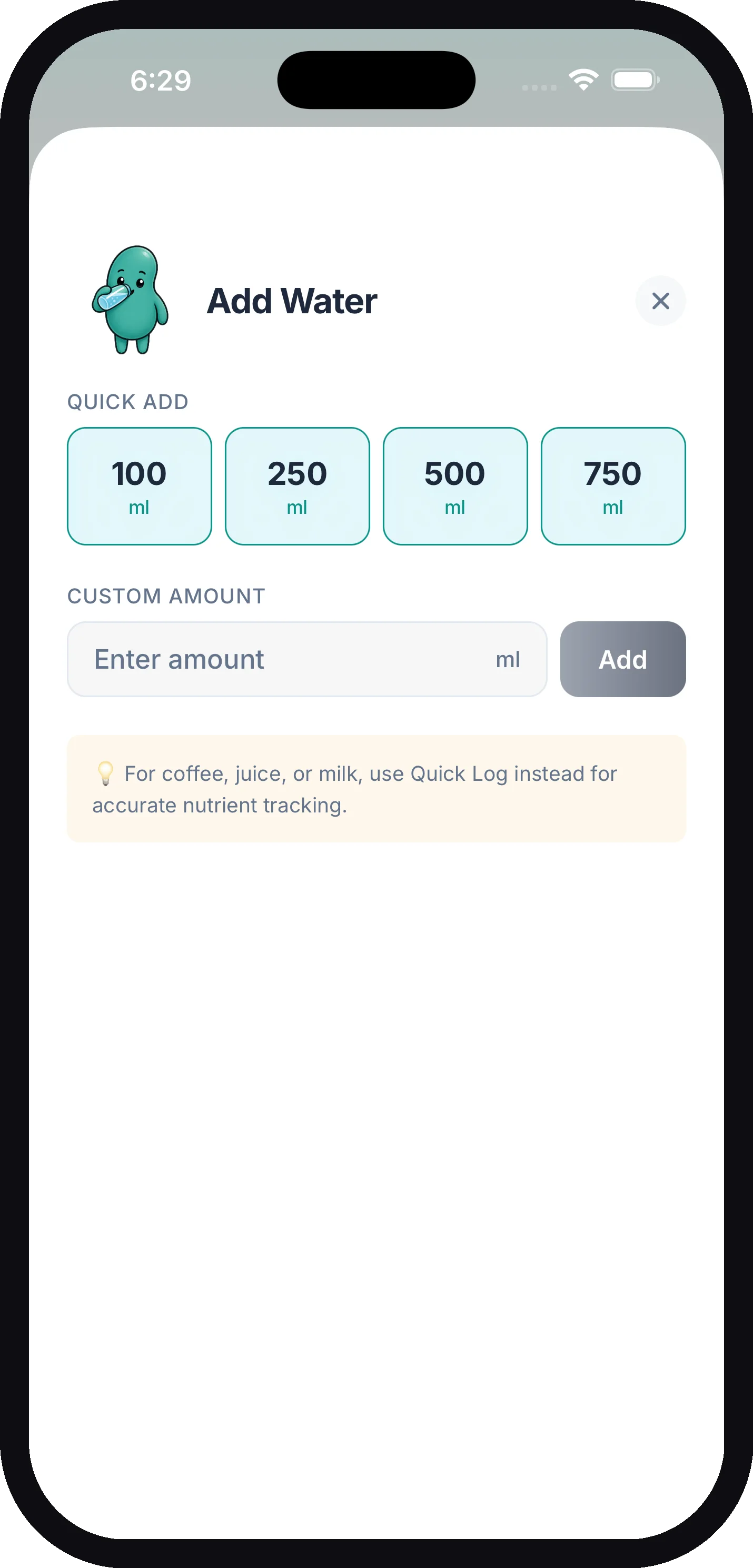
This editor is for drinks logged from the tracker (plain water and other pure fluids). A drink that carries nutrients — a coffee or a glass of milk logged with Quick Log, say — opens the regular edit sheet instead, where you can change its fluid amount along with everything else.
Logging Coffee, Juice, Milk, and Other Drinks
For drinks that contain nutrients, use Quick Log (Add Food → Say or Type) or scan it instead of the water buttons. The AI estimates both the fluid amount and the nutrients, so everything is counted correctly.
KidneyPal recognizes these fluid types: Water, Coffee, Tea, Juice, Milk, Soda, Soup, and Other.
This matters because drinks aren’t just fluid:
- A glass of juice adds potassium to your daily total
- A bowl of soup can add a lot of sodium
- A glass of milk adds potassium, phosphorus, and protein
When you log a drink this way, it counts toward your fluid budget and its nutrients count toward your nutrient budget — and it shows up in both the fluid tracker and your meal timeline. No double-entry needed.
Saved foods and recipes count too. When you log a saved food or a recipe that contains fluid — a bowl of soup, a latte, a smoothie — the fluid credits your tracker automatically, scaled to however many servings you log. No second manual entry needed.
Manual entries work the same way: the Manual entry form has a Fluid Amount field, so a drink your dietitian gave you exact numbers for counts toward your fluid budget too. And if an entry is already logged, open it — every edit sheet has the same Fluid Amount field, so you can mark any food as a fluid after the fact (or set it to 0 to take it out of the tracker).
Your Daily Fluid Limit
Your fluid limit is set automatically from your kidney status. These are the defaults:
| Kidney status | Default daily limit |
|---|---|
| On dialysis | 1,000 ml |
| On dialysis, type Starting soon | 1,200 ml (the Stage 5 limit, until dialysis starts) |
| CKD Stage 5 | 1,200 ml |
| CKD Stage 4 | 1,500 ml |
| CKD Stage 3 | 2,000 ml |
| CKD Stage 1–2, transplant, prevention | 2,500 ml |
| Kidney stones | 3,000 ml |
Notice that kidney stones goes the other way: for stone prevention, drinking more is the single most effective habit, so KidneyPal sets a higher target to work toward rather than a restriction to stay under.
The tracker treats your number accordingly. With a fluid restriction (CKD Stage 3 and above, or dialysis), going over the limit shows a warning. For everyone else — stones, prevention, Stage 1–2, transplant — the number is a hydration goal: reaching it shows “Goal reached!” instead of a warning, because for you, more fluid is the win.
If your care team gave you a different number, set it yourself: go to Settings → Daily Limits and enter your fluid limit. Custom limits always override the automatic ones. Learn more in Nutrient Limits and Settings.
Milliliters or Fluid Ounces
KidneyPal works in whichever unit you think in. Go to Settings → Units → Volume Unit and choose Milliliters (ml) or Fluid Ounces (oz). The tracker, quick-add buttons, and all amounts switch over instantly. Until you pick one, KidneyPal follows your region: fluid ounces in the US, milliliters elsewhere.
Apple Health
On iOS, KidneyPal Pro can sync water both ways with Apple Health — water you log in KidneyPal appears in the Health app, and water from other apps appears in your fluid tracker with a small heart icon.
One thing to know: water imported from Apple Health can’t be edited or deleted inside KidneyPal. Tapping one of those entries — in the pill row or the Fluid Log — just shows a note explaining that it was imported from Apple Health. Delete it in the Health app instead, and it disappears from KidneyPal on the next sync. See Apple Health for setup.