
Weight is one of the simplest, most useful things to track with kidney disease. Day-to-day changes can reflect fluid shifts — something your care team pays close attention to, especially if you’re on dialysis. KidneyPal makes logging it a two-tap habit — and blood pressure and activity get the same quick-log treatment, in the same tile row.
A gentle note: KidneyPal records your weight; it doesn’t interpret it. Sudden gains or losses are always worth a conversation with your doctor or dialysis team.
Logging Your Weight
There are two ways in:
- From your diary — tap the Weight tile in the quick-log row. If you haven’t weighed in yet, it shows a +; once logged, it shows today’s weight.
- From the Weight History screen — long-press the diary’s Weight tile (or tap View History under the trend chart on the Progress tab) to open Weight History, then tap Log Weight on the Current Weight card.
The log sheet is quick:
- Choose kg or lbs — switching converts the number for you.
- Type your weight.
- Pick the date if it’s not today (you can backfill past days, but not future ones).
- Tap Save.
You keep one entry per day: if you log again for the same date, it simply updates that day’s weight.
Logging today’s weight also updates the weight stored in your kidney profile — the number your daily protein limit is calculated from (see How Your Limits Are Calculated). Backdated entries are treated as history and don’t change it, so filling in past days won’t move your limit.
It works the other way too. A weight you type in the protein editor (Settings → Daily Limits → Protein), or enter during setup, is also saved as today’s reading in your weight history (and to Apple Health if sync is on). Changing only the unit there doesn’t change your weight.
Tip: Weigh yourself at the same time each day — most people pick first thing in the morning — so your trend reflects real change, not the time of day.
kg or lbs
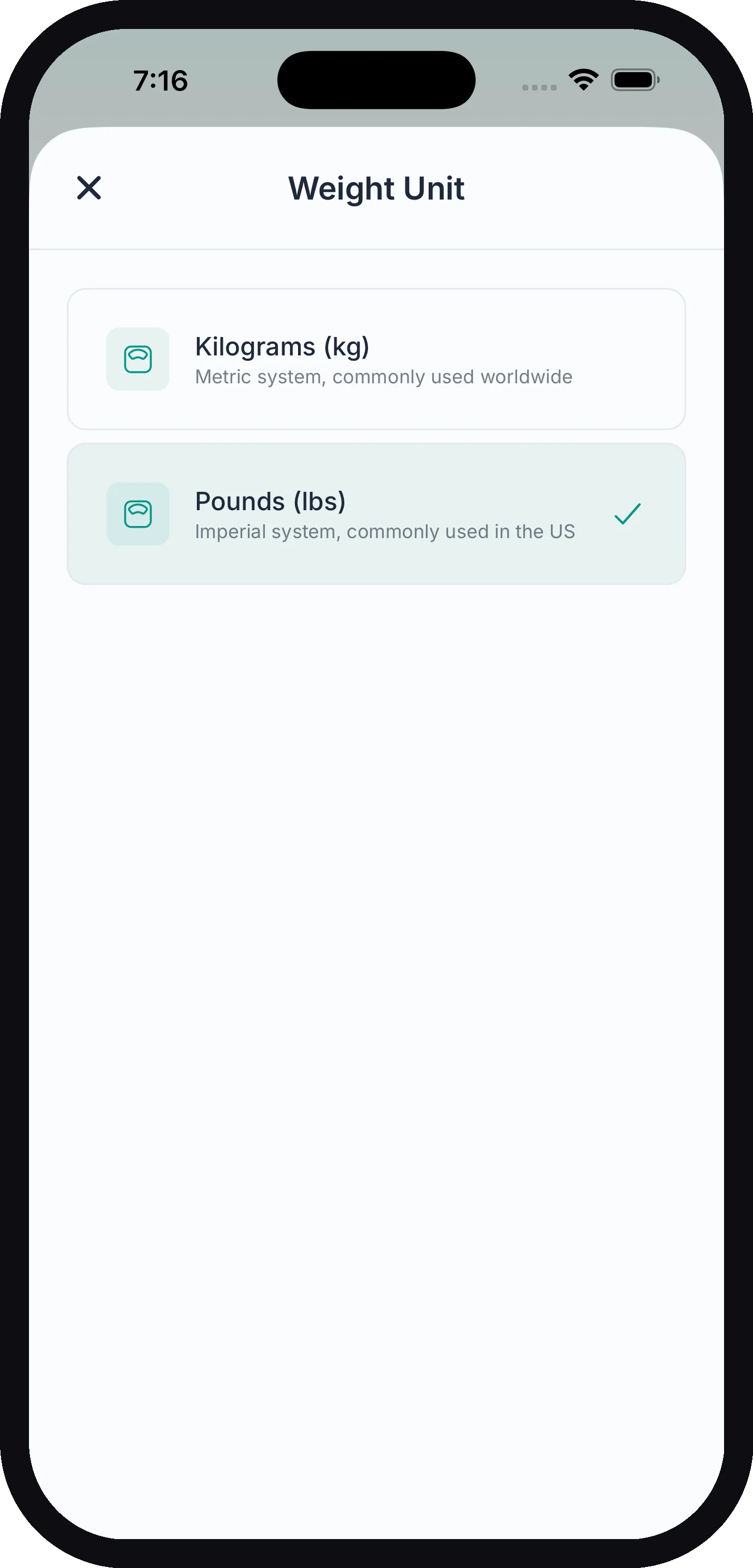
KidneyPal displays weight in your preferred unit, which you can change anytime in Settings → Units → Weight Unit (see Settings). Until you pick one, it follows your region: pounds in the US, kilograms elsewhere. Once you choose, your choice always wins. The toggle on the log sheet also lets you enter a one-off weight in the other unit — the app converts and stores it consistently either way.
Your Weight History
The Weight History screen shows your Current Weight at the top, the trend chart, and a full list of entries grouped by month. Each row shows the date, the weight, and where it came from — Manual for entries you typed, or Apple Health for synced ones.
If one day has more than one reading — say one you typed and one from a smart scale — KidneyPal uses the one you typed for that day; between two of the same kind, the most recently changed one. The diary tile, Current Weight and the chart (one point per day) all use that reading.
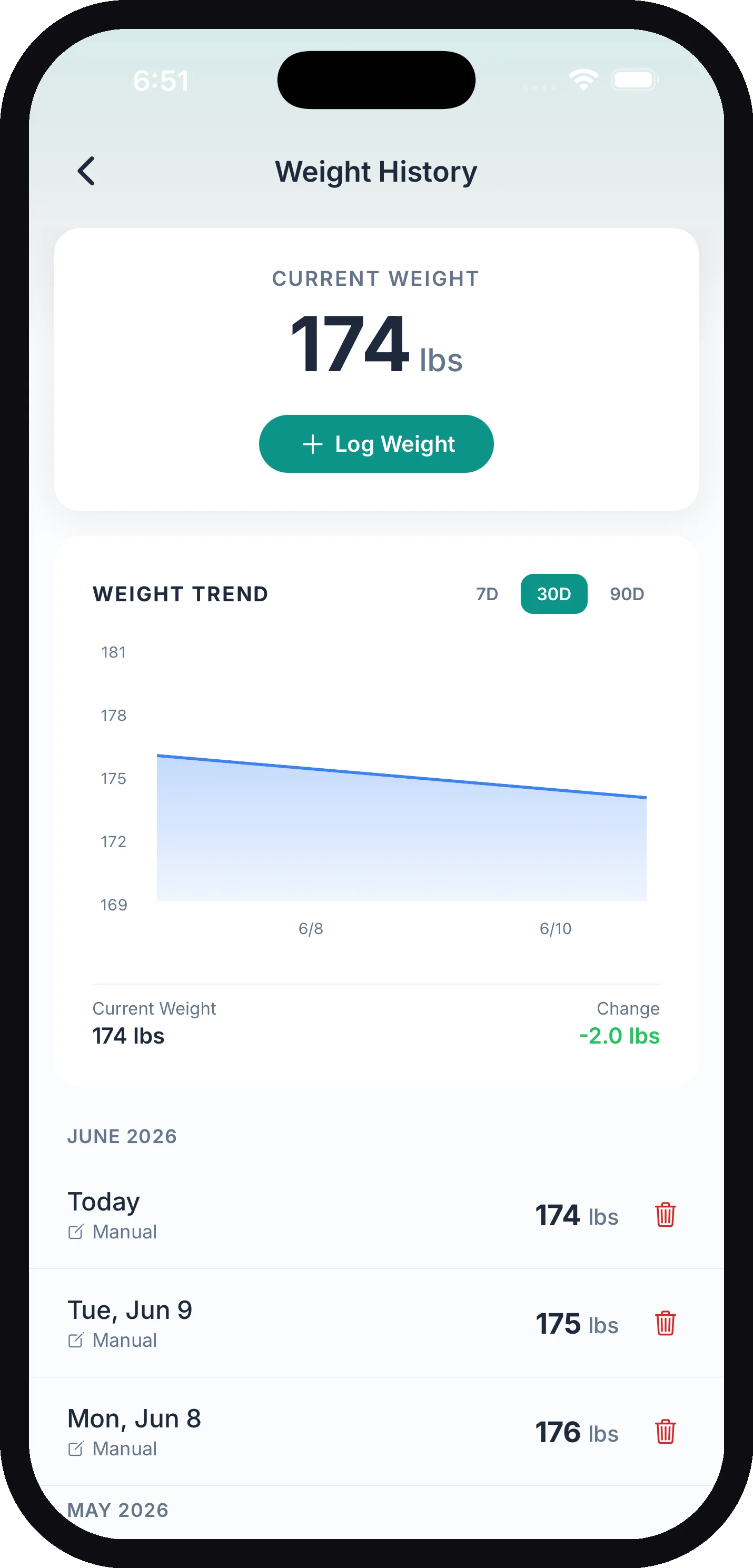
- To edit an entry: tap any Manual row. The Edit Weight sheet opens with the value and date filled in — change either and tap Save.
- To delete an entry: tap the trash icon on the row (or in the Edit Weight sheet) and confirm.
The Trend Chart (Pro)
The Weight Trend chart requires KidneyPal Pro. It appears on both the Weight History screen and the Progress tab, and shows your weight over the last 7D, 30D, or 90D, with your Current weight and total Change for the period underneath.
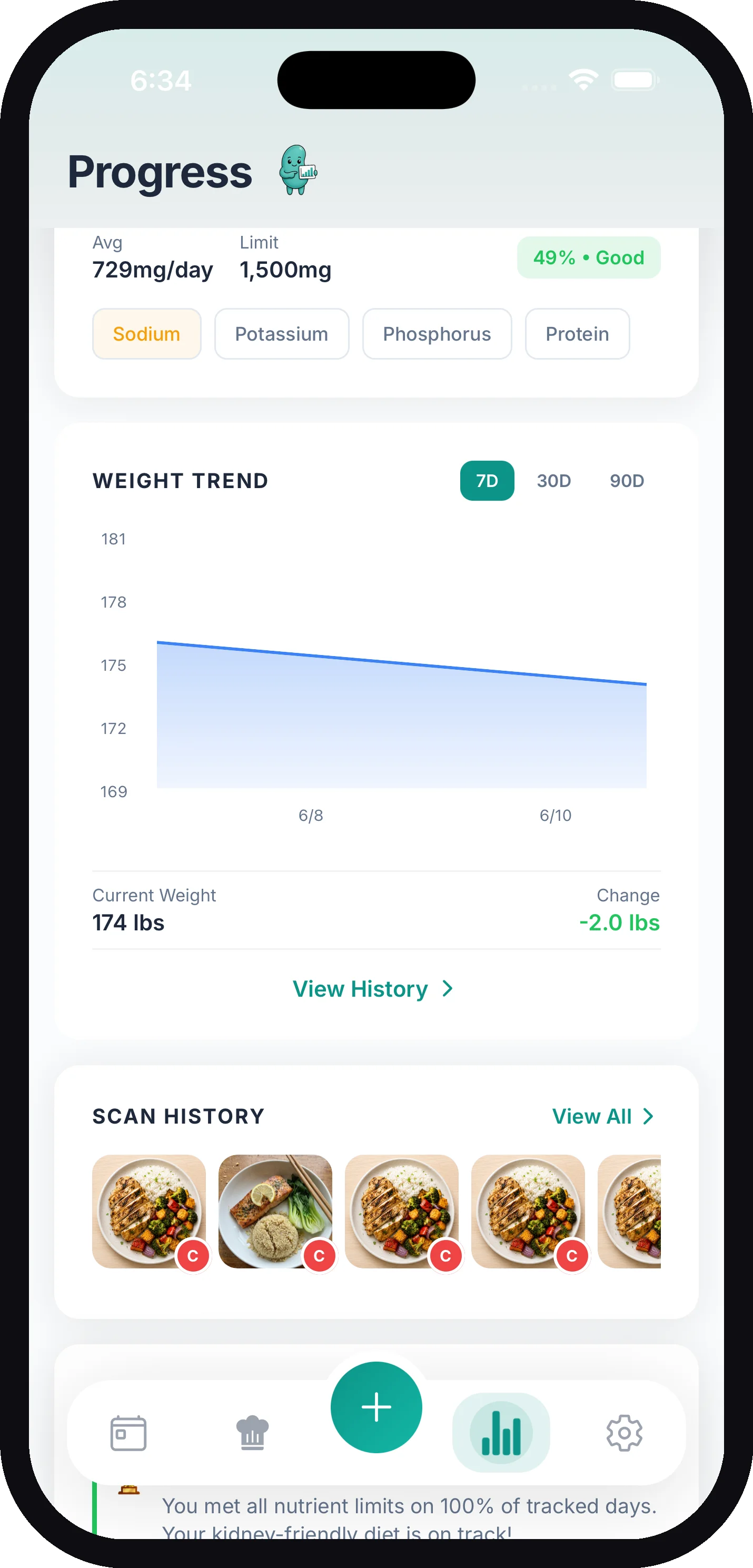
If you have a goal weight set, the chart draws a green target line at that weight and shows a Goal badge, so you can see your progress toward it at a glance.
Apple Health Sync (Pro, iOS only)
With Apple Health sync turned on (requires KidneyPal Pro):
- Weights come in automatically. Step on a smart scale connected to Apple Health and the reading appears in KidneyPal on its own, labeled Apple Health with a small heart icon.
- Your manual logs go out. Weights you log in KidneyPal are written to Apple Health too, so everything stays in one place.
One important difference: Apple Health entries can’t be edited or deleted inside KidneyPal. They belong to the Health app. If one is wrong, delete it in Apple Health and it disappears from KidneyPal on the next sync. Manual entries, on the other hand, are fully yours to edit and delete in the app.
Weight on Your Doctor’s Report
If you log weight, your Doctor’s Report includes a Weight Tracking section with your starting weight, current weight, and the change across the report period — a tidy summary for your next appointment.