
The Progress tab is your bird’s-eye view of how your kidney diet is going — not just one meal at a time, but across days, weeks, and months. A quick scroll tells you which days went well, where your trouble spots are, and what patterns are worth mentioning to your care team.
What’s on the Progress Tab
| Section | Free or Pro? |
|---|---|
| THIS WEEK summary | Free |
| Your days color calendar | Free (days older than your free history show as locked) |
| NUTRIENT TRENDS charts | Requires KidneyPal Pro |
| Weight Trend chart | Requires KidneyPal Pro |
| Weekly Activity summary | Free |
| SCAN HISTORY | Free |
| INSIGHTS (AI) | Requires KidneyPal Pro |
| Doctor’s Report | Requires KidneyPal Pro |
| MY NOTES | Free |
This Week Summary
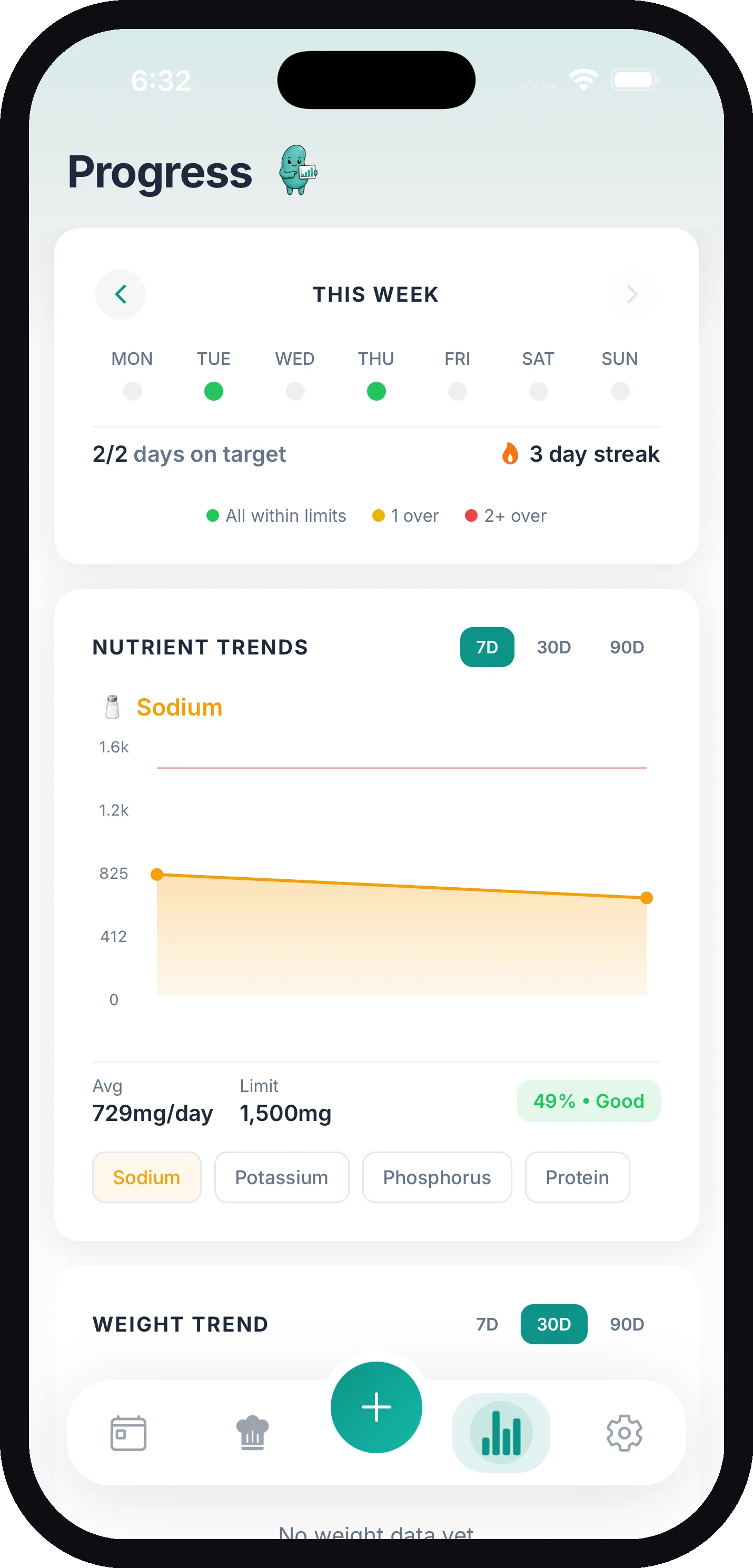
At the top of the tab, the THIS WEEK card shows seven dots — one for each day of the week, starting Monday. Each dot is colored based on how that day went against your four core limits (sodium, potassium, phosphorus, and protein):
| Dot color | Meaning |
|---|---|
| Green | All within limits — you stayed under all four |
| Yellow | 1 over — one nutrient went over its limit |
| Red | 2+ over — two or more nutrients went over |
| Gray | Nothing logged that day |
Your days on target count is simply the number of green days — days where everything you logged stayed within all four limits. The card also shows your current day streak.
Each day is measured against the limits that applied on that day, so adjusting a target now doesn’t rewrite how last month scored — see When Your Limits Change.
Use the arrows on either side of the card to look back at previous weeks.
Tip: Your limits come from your kidney profile, or from custom limits your doctor gave you. See how nutrient limits work.
Your Days: The Color Calendar
Below the week card, Your days shows months of logging at once — a grid of small squares, one per day, with a row for each weekday (Monday at the top) and a column for each week. The newest week is on the right, and the grid shows as many weeks as fit your screen.
Each square uses the same colors as the week dots:
| Square | Meaning |
|---|---|
| Green | Within limits |
| Yellow | 1 over — one nutrient went over its limit |
| Red | 2+ over — two or more went over |
| Outlined, empty | Nothing logged that day |
| Faded | Locked — older than your free history (free accounts only) |
Colors count sodium, potassium, phosphorus, protein, and any other maximum you track. Fluid and minimum goals aren’t counted. Today’s square has a ring around it, and its color means “so far.”
Tap or drag across the grid to select a day. A row under the grid spells it out — for example Sat, Sep 12 · 1 over — so you never have to rely on the color alone. Tap that row (Open day) to jump to that day in your diary. On a free account, selecting a locked day offers Unlock your full history with Pro instead.
The footer counts your green days over the weeks shown. Like the week card, every day is judged by the limits that applied on that day. Browsing the calendar never changes your diary. The same calendar is on the Progress page of KidneyPal on the Web.
Tip: With VoiceOver or TalkBack, the grid is a single control — swipe up or down to move one day at a time, and the selected day is read aloud.
Nutrient Trends (Pro)
The NUTRIENT TRENDS chart requires KidneyPal Pro. Pick a nutrient — Sodium, Potassium, Phosphorus, Protein, Fluid, Calories, or any optional nutrient you track (carbs with sugars and fiber, fat with saturated fat, magnesium, calcium, vitamin K, iron, oxalate) — and a time window (7D, 30D, or 90D) to see a line chart of your daily intake.
Reading the chart is simple:
- The colored line is what you actually ate (or drank) each day.
- A second line marks your daily limit — you want to stay below it. If your target changed part-way through the period, the line steps to the new value on the day it changed, and a caption under the chart reads Your target changed during this period.
- Days where you logged nothing are skipped, so the chart only reflects real data.
Below the chart you’ll see your Avg (average intake per day for that period) next to your Limit, so you can tell at a glance whether you’re running high or comfortably under.
Calories and the optional nutrients are added up from everything you logged that day, so older days show them too. Iron shows only days where every food has an iron value, so a day is never shown low just because some foods have no iron data. These have no default target: the limit line and the badge appear only if you set a target in Settings → Optional Nutrients (a maximum is a limit, a minimum on its own is a goal) and every day in the window has one.
Fluid shows in your chosen unit (ml or oz). If your kidney status restricts fluid (CKD stage 3+, dialysis), the line is a limit like the others. For everyone else it’s a hydration Goal: the flat line turns green, and the badge reads Good once your average reaches it or Below while it doesn’t. This is great for spotting patterns like “I always go over on sodium on weekends.”
Vitals (Pro)
The Vitals card shows your latest blood glucose and blood oxygen (SpO2) with a typical-range chip and the date of each reading. Tap either one for its history and chart. Readings are logged from the tiles on your diary. If you haven’t logged any yet, the card says so. See Labs.
Labs (Pro)
The Labs card shows your latest eGFR, potassium and phosphorus with a typical-range chip and the date of each result, plus a + to log a new lab report. View labs opens the full hub. See Labs.
Weekly Activity
The Weekly Activity card sums up the week you’ve navigated to with the arrows: how many workouts you logged, total minutes, and active days, with a progress bar toward the 150-minutes-a-week goal. Tap View History at the bottom of the card to open your full activity history, where every workout you’ve logged is listed by month and any manual entry can be tapped to edit. Logging workouts and the weekly summary are free — see Activity Tracking for the details, including calorie estimates and Apple Health workout import.
Your Streak
Your streak counts how many days in a row you’ve logged something — a meal, a snack, or even a glass of water all count. Log at least once each day and the streak keeps growing. Miss a day and a streak freeze steps in — you get two automatic freezes each calendar month that cover missed days, and frozen days show a snowflake on your diary’s week calendar while still counting toward your streak. Miss more days than you have freezes left and the streak resets, but your longest streak is saved separately as your Best, so your record lives on.
You’ll get a little celebration when you hit a milestone:
| Days | Milestone |
|---|---|
| 3 | 3-Day Streak! |
| 7 | 1 Week Streak! |
| 14 | 2 Week Streak! |
| 30 | 30-Day Champion! |
| 60 | 60-Day Streak! |
| 100 | 100-Day Master! |
Tip: If it’s 8:30 PM and you haven’t logged anything yet, KidneyPal can send you a gentle reminder so your streak survives the day. Turn it on in notification settings.
AI Insights (Pro)
The INSIGHTS card requires KidneyPal Pro. It looks at your last 30 days of diary entries and surfaces up to four personalized observations — warnings in orange, wins in green, and tips in blue. Things like:
- Sodium Over Limit — how many days you went over, plus your top sodium sources by name
- Great Sodium Control or Potassium in Check — when you’ve stayed comfortably under for most days
- Phosphorus Watch and Protein Intake High — nutrients trending over your limits (no Protein Intake High on dialysis, where protein is a goal)
- Low Protein Intake — if you’re averaging well below your protein target
- Excellent Compliance — when you’ve met all your limits on at least 80% of tracked days
- Keep Tracking or Consistent Tracking — nudges and kudos about your logging habit
Insights recalculate every time you open the Progress tab, and you can tap the refresh icon on the card to update them on demand. They need a little data to be meaningful — after about a week of logging, the patterns start to get genuinely useful.
Scan History
The SCAN HISTORY card shows thumbnails of your recent meal scans, each with its safety grade. Tap any thumbnail to reopen the full analysis, or tap View All to open the complete grid of every scan you’ve made.
On the Scan History screen you can also clean house:
- Long-press any scan to start selecting.
- Tap more scans to add them, or use Select All.
- Tap the red delete button at the bottom (it reads Delete 3 Scans, with your count) and confirm.
Deleting scans is permanent — it removes the photo and analysis — but it doesn’t change what’s logged in your diary, so your nutrient history stays intact.
My Notes
The MY NOTES card collects every daily note you’ve written, newest first. Tap View All to see the full My Notes timeline, with each note under its date.
Notes are a nice companion to your charts: jot down how you felt, swelling, energy, or anything your doctor asked you to watch, and review it side by side with your nutrient data. You add notes from your diary.
What’s Next
When you’re ready to turn all this tracking into something you can hand to your nephrologist, generate a Doctor’s Report. And if you’re tracking weight too, see weight tracking.