For packaged foods, you don’t have to guess. KidneyPal can read the nutrition facts label directly or look the product up by its barcode — both give you more precise numbers than a photo estimate.
Switching Modes
Open the camera (the camera icon at the bottom of your screen) and use the mode selector just above the shutter: tap Meal, Label, or Barcode, or swipe left or right across the preview. The active mode always sits centered above the shutter, with its neighbors visible either side. Tap the ? beside the shutter for a one-line rundown of every mode, plus scanning tips and a shortcut to support chat.
Label Mode
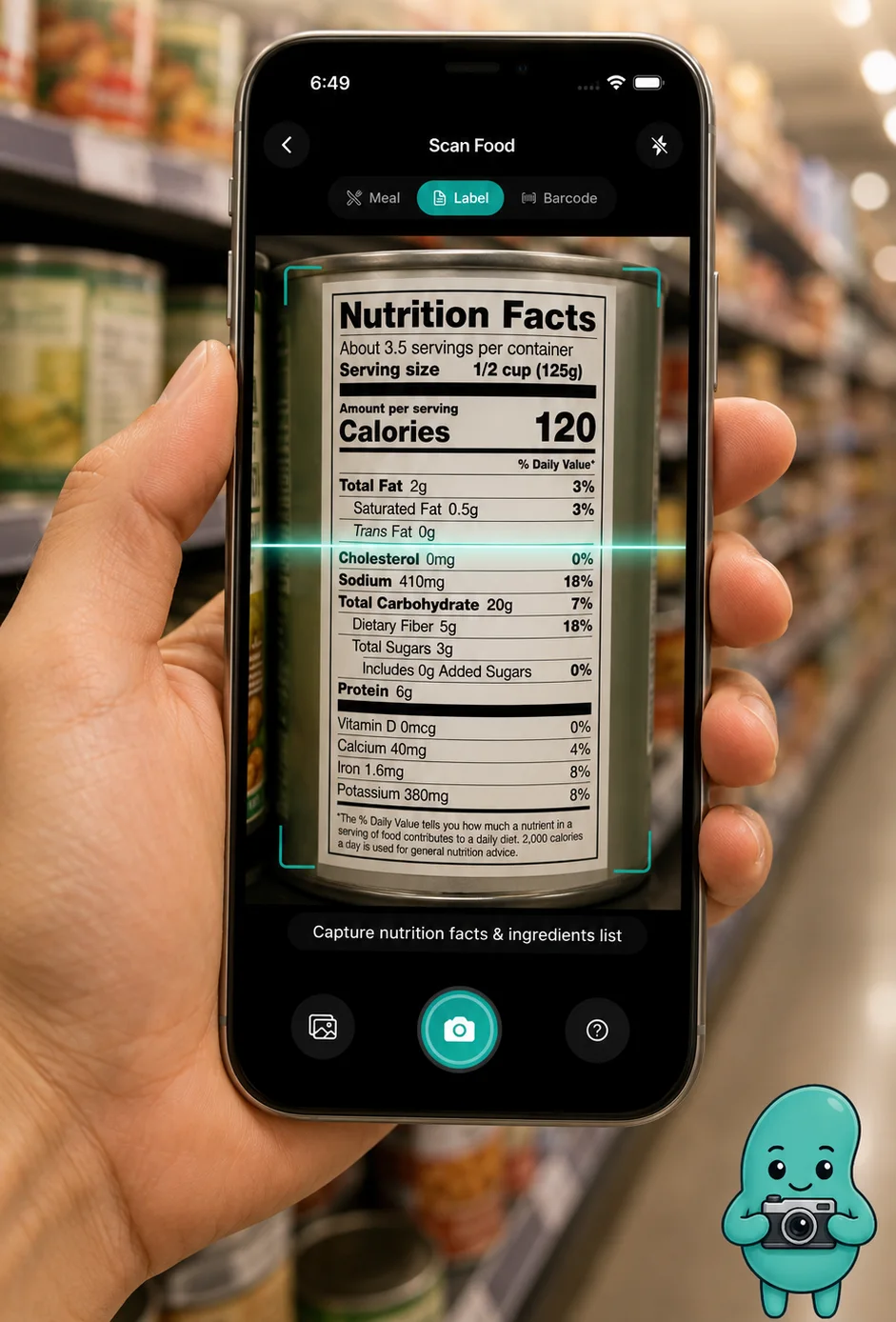
Switch to Label and follow the on-screen prompt: Capture nutrition facts & ingredients list. Frame the nutrition facts panel — and if you can fit the ingredients list in the same shot, even better. Tap the capture button, confirm the photo, and the AI reads the label.
You can also tap the gallery button to use a label photo you took earlier.
Why Label Scans Are More Precise
A photo scan of a plated meal has to estimate nutrients. A label scan reads the printed values, so sodium, protein, and other declared nutrients come straight from the package. The AI fills in what US labels often leave off — like potassium and phosphorus — with estimates based on the ingredients and product type.
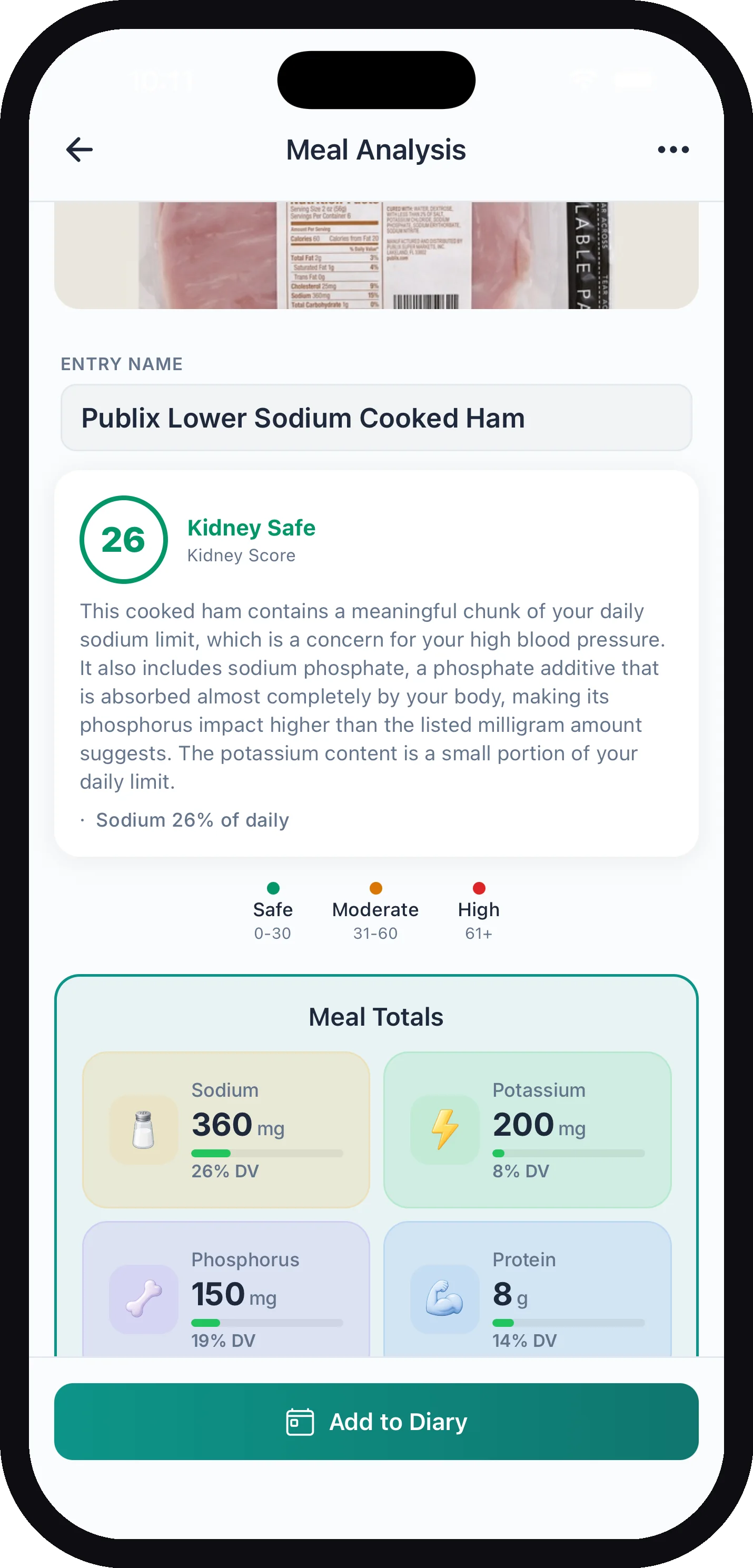
You land on the same Meal Analysis screen as a photo scan: a personalized Kidney Score, the explanation, and Meal Totals with each nutrient as a percentage of your daily limit.
Catching Hidden Phosphate Additives
This is where label scanning really earns its keep. Many packaged foods contain phosphate additives — ingredients like sodium phosphate, dicalcium phosphate, or pyrophosphates — and these are absorbed much more readily than natural phosphorus. KidneyPal scans the ingredients list and flags them (along with potassium additives) in red in the Ingredients section of your results.
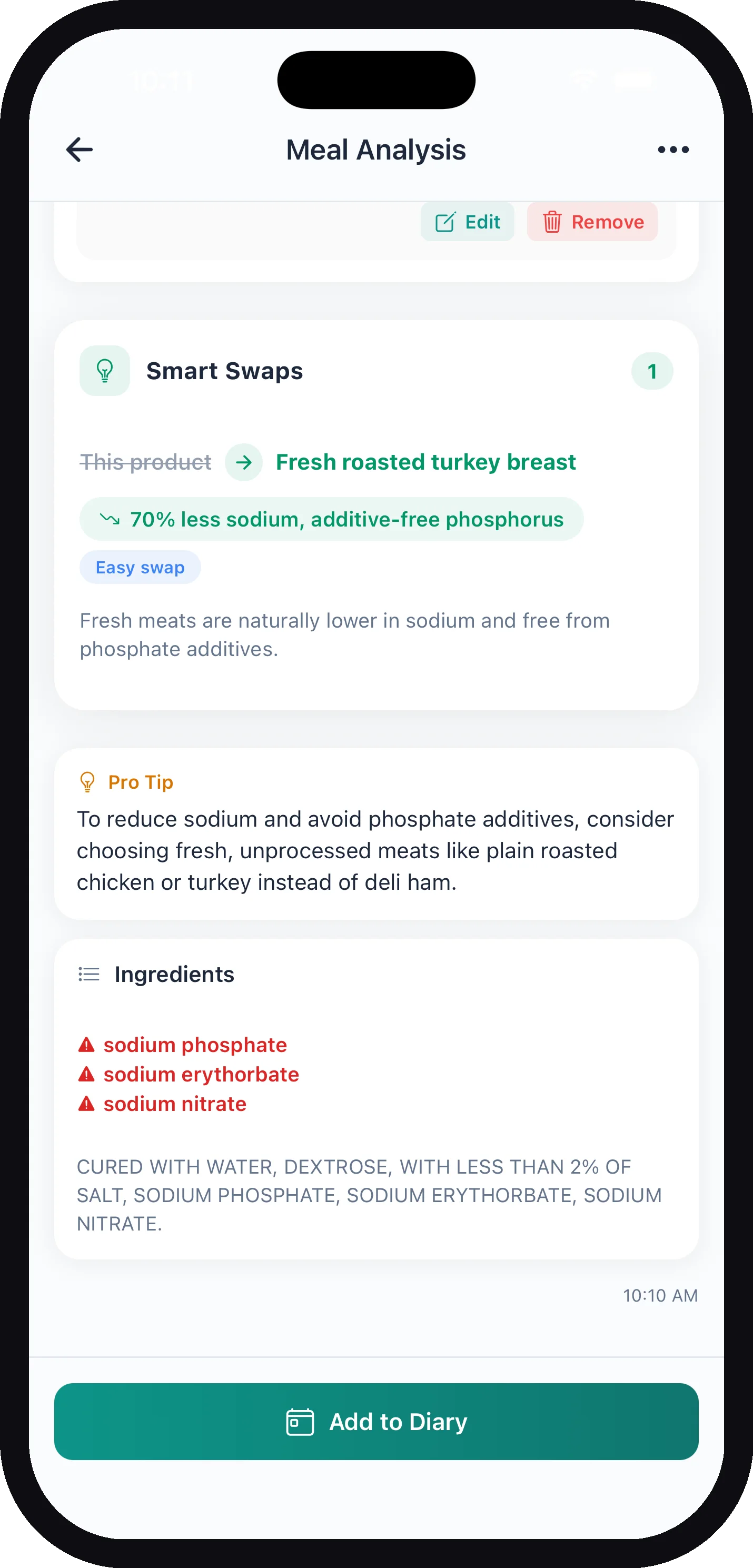
In the example above, the same cooked ham scored as kidney-safe on its listed numbers — but the scan still flags the sodium phosphate hiding in the ingredients, exactly the kind of additive that raises real phosphorus load beyond what the label’s milligram value suggests.
Adding the Ingredients List Afterward
If your first photo only caught the nutrition facts, the analysis will say it couldn’t check for additives. No need to start over: open the ⋯ menu on the results screen and tap Add Ingredients Photo. Snap the ingredients panel and the analysis updates with additive checking included.
Tip: A quick rule of thumb your dietitian may have mentioned: scan the ingredients for the letters “phos.” KidneyPal automates that check for you.
Scanning a Label for a Recipe
You can also read a label while building a recipe. In the recipe editor, tap Scan a label under Saved foods & labels, then take or choose a photo. The label becomes one ingredient of the recipe, with its printed numbers per serving; you pick how many servings go in. Nothing is logged to your diary and the photo isn’t saved. Values the label doesn’t print, like potassium on many US labels, are estimated, just as in a regular label scan. This is on the phone only, and the recipe editor needs KidneyPal Pro — see Recipes.
Barcode Mode
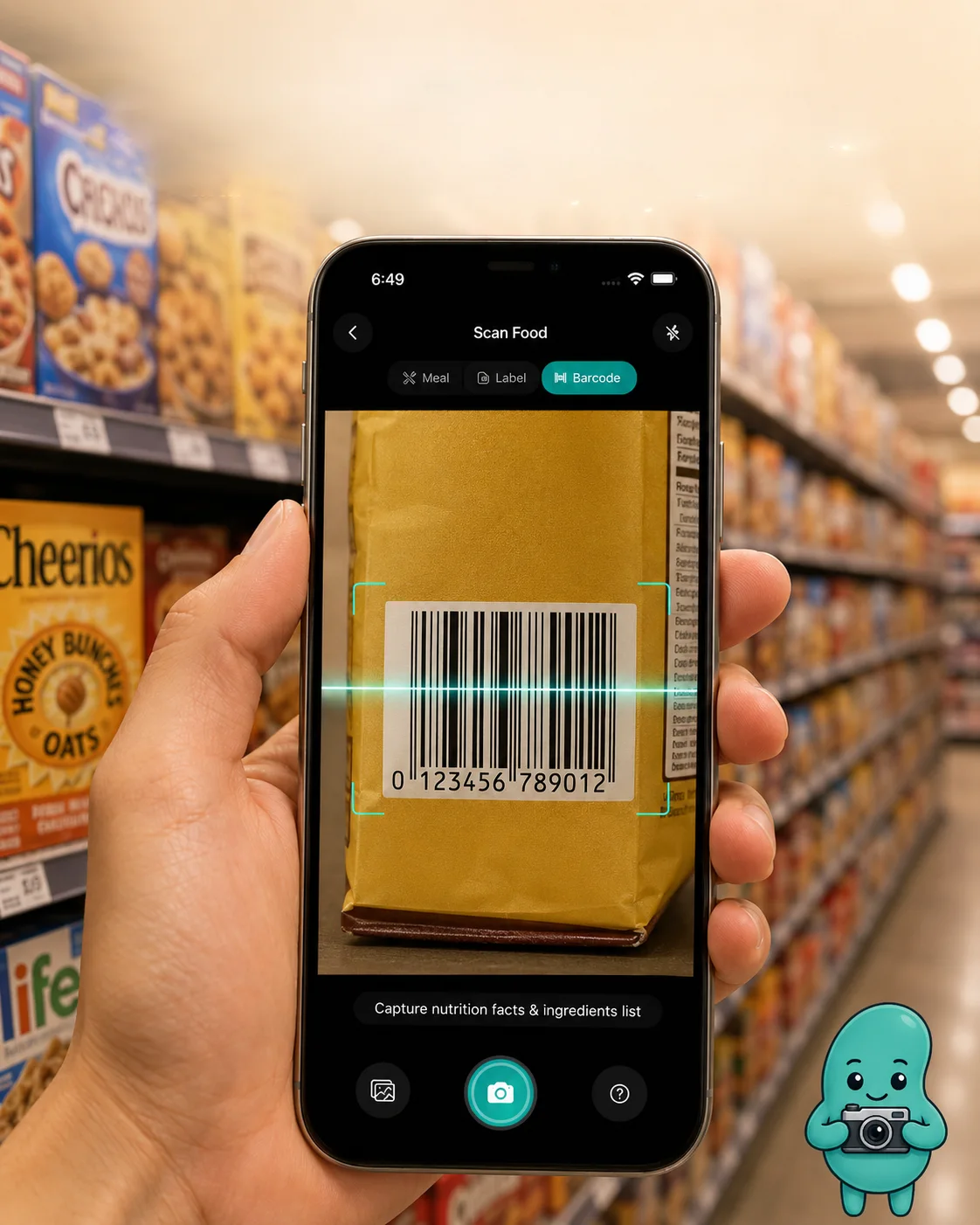
Switch to Barcode and hold your camera steady over the product’s barcode — there’s no shutter button, it detects automatically. You’ll see Scanning… while KidneyPal looks the product up in the Open Food Facts database (a large, community-maintained product catalog) and then runs the same kidney-safety analysis on it.
When a Barcode Isn’t Found
Not every product is in the database, especially store brands and regional items. If yours isn’t, you’ll see Product Not Found: “This product isn’t in our database. Try scanning the nutrition label instead.” Tap Scan Label and the app switches straight to Label mode — you get the same analysis from the package itself.
Tip: Even when a barcode is found, database entries sometimes lack potassium or phosphorus. If the results look thin, use Add Ingredients Photo from the ⋯ menu, or scan the label instead.
Numbers Don’t Match the Package?
Barcode results come from the product database, which can be out of date or list a different size than your package. Every barcode result has a link under the analysis: Numbers don’t match the package? Scan the label. Tap it and the camera reopens in Label mode, keeping the meal you were logging to, so you can scan the nutrition facts printed on the package instead. On a free account, the link reminds you that the label scan uses one of today’s free scans. In the web app the same link sits under a barcode result on the Log page; click it to switch to Label mode.
Reading and Logging Your Results
Both modes land on the same analysis screen as a photo scan — Kidney Score, nutrient totals against your daily limits, safety rating, Smart Swaps, and a tip (both can be hidden in Settings → Meals & Recipes). See Scanning a Meal for what everything means and how to edit, re-analyze, ask follow-up questions, or report an inaccuracy.
One thing worth doing before you log: set the Servings control to match what you’ll actually eat. 1 serving means the item exactly as analyzed — set 0.5 if you’re having half, 2 for double — and every nutrient scales automatically. Then tap Add to Diary, pick the date and meal, and you’re done.
Just checking, not logging?
If you’re standing in a store aisle and only want to know whether a product is worth buying, scan its barcode and read the verdict — nothing goes into your diary until you tap Add to Diary, and Meal and Label scans work the same way. (The separate Browse mode of older versions was removed in 4.46.) To plan the trip itself, see the Shopping List.
The Daily Limit
Label and barcode scans share the same free allowance as everything else: 5 AI analyses per day across photo, label, barcode, menu, and Quick Log combined, resetting at midnight local time. KidneyPal Pro removes the limit — see Subscription & Billing.
As always, the app gives you data — your care team gives you targets. If your dietitian has told you specific brands or additives to avoid, follow their numbers first.