Gentle reminders help you build the logging habit — and a consistent log is what makes your trends and doctor reports useful. Notifications are free for everyone.
Turning Notifications On
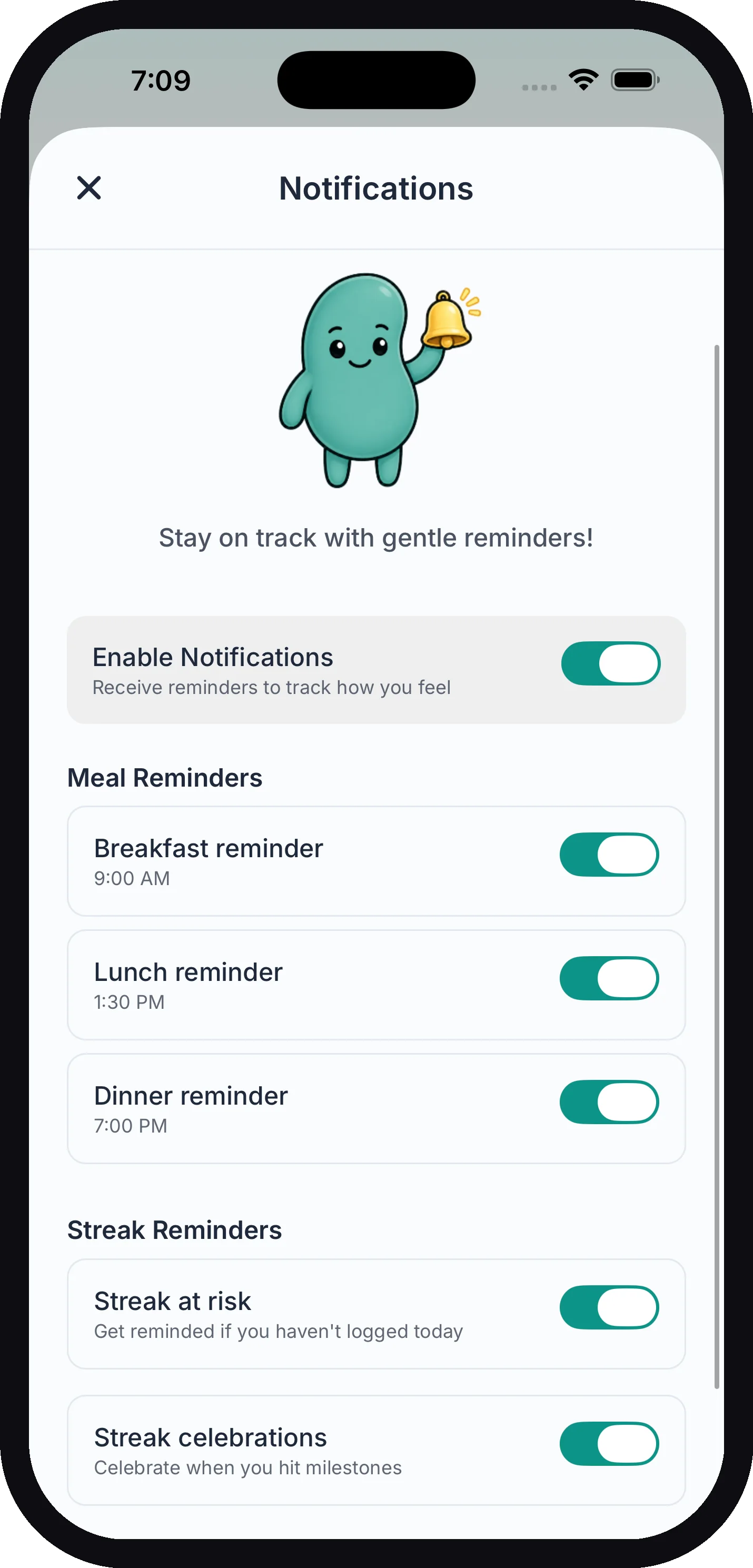
Go to Settings and tap Notifications. At the top of the screen, turn on Enable Notifications. The first time, your phone will ask for permission to send notifications — tap Allow.
Turning the main toggle off cancels all scheduled reminders at once.
Meal Reminders
Under Meal Reminders, each meal has its own switch:
| Reminder | Time |
|---|---|
| Breakfast reminder | 9:00 AM |
| Lunch reminder | 1:30 PM |
| Dinner reminder | 7:00 PM |
Turn on just the meals you tend to forget. Reminder times are fixed and can’t be changed yet.
Reminders Skip Meals You’ve Already Logged
KidneyPal won’t nag you about something you’ve already done. If you log breakfast at 8 AM, the 9 AM breakfast reminder is skipped for that day and quietly resumes tomorrow.
One detail worth knowing: a water-only entry doesn’t count as a logged meal, so the meal reminder will still fire. Logging food for that meal is what skips it. See the diary guide for all the ways to log.
Streak Reminders
Under Streak Reminders, there are two more switches:
- Streak at risk — if you haven’t logged anything by 8:30 PM, you’ll get a nudge so you don’t lose your streak. Logging anything earlier in the day — even a glass of water — skips that evening’s reminder.
- Streak celebrations — a little celebration notification when you hit a milestone: 3, 7, 14, 30, 60, and 100 days.
Your Language
Reminders arrive in whatever language the app is set to — change your language in Settings and your reminders follow along.
If Notifications Don’t Arrive
Notifications need to be allowed in two places: inside KidneyPal and at the system level.
Check inside the app:
- Settings → Notifications — make sure Enable Notifications is on, plus the switch for each reminder you want
Check your phone’s settings:
- iOS: open the iPhone Settings app → Notifications → KidneyPal → make sure Allow Notifications is on
- Android: long-press the KidneyPal icon → App info → Notifications → make sure notifications are allowed
On Android, also check battery settings. Some phones aggressively put apps to sleep, which can delay or silence scheduled reminders. In App info → Battery, set KidneyPal to unrestricted (the exact wording varies by manufacturer).
Tip: If a meal reminder didn’t fire but everything is turned on, check your diary first — if you already logged that meal, the skipped reminder is by design.
Related Pages
- Diary — logging meals and fluids
- Settings — language, theme, and units
- Progress & Insights — what a consistent log unlocks