
Your diary is home base — it’s the first thing you see when you open KidneyPal. It shows everything you’ve eaten and drunk for the day, and how you’re tracking against your nutrient limits.
Your Nutrient Budget
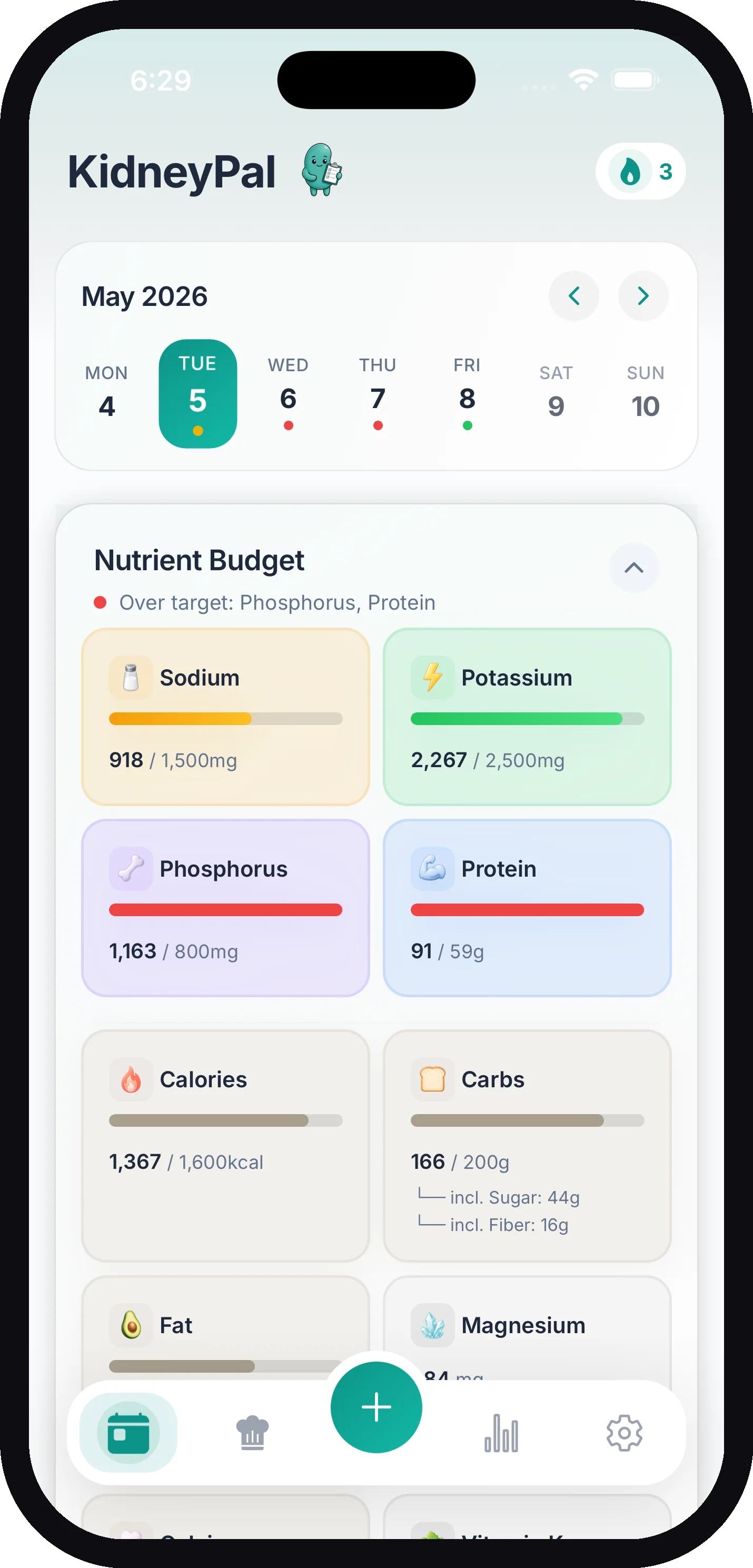
The Nutrient Budget dashboard at the top shows your running totals for the day — sodium, potassium, phosphorus, and protein, each against your personal limit. On dialysis, protein is a goal: its bar shows how much is still to go. Two labeled tabs on the card — Budget and Left today — switch between the bar view and the room-remaining view (swiping works too), and the card returns to Budget whenever you change days. As you log food, each bar fills up. If you go over a limit, that bar turns red and a warning appears showing exactly which nutrients are over target. A nutrient with a doctor-set minimum shows a “Min … to go” line that turns green with a check once you reach the floor — see How Your Limits Are Calculated for minimums and ranges.
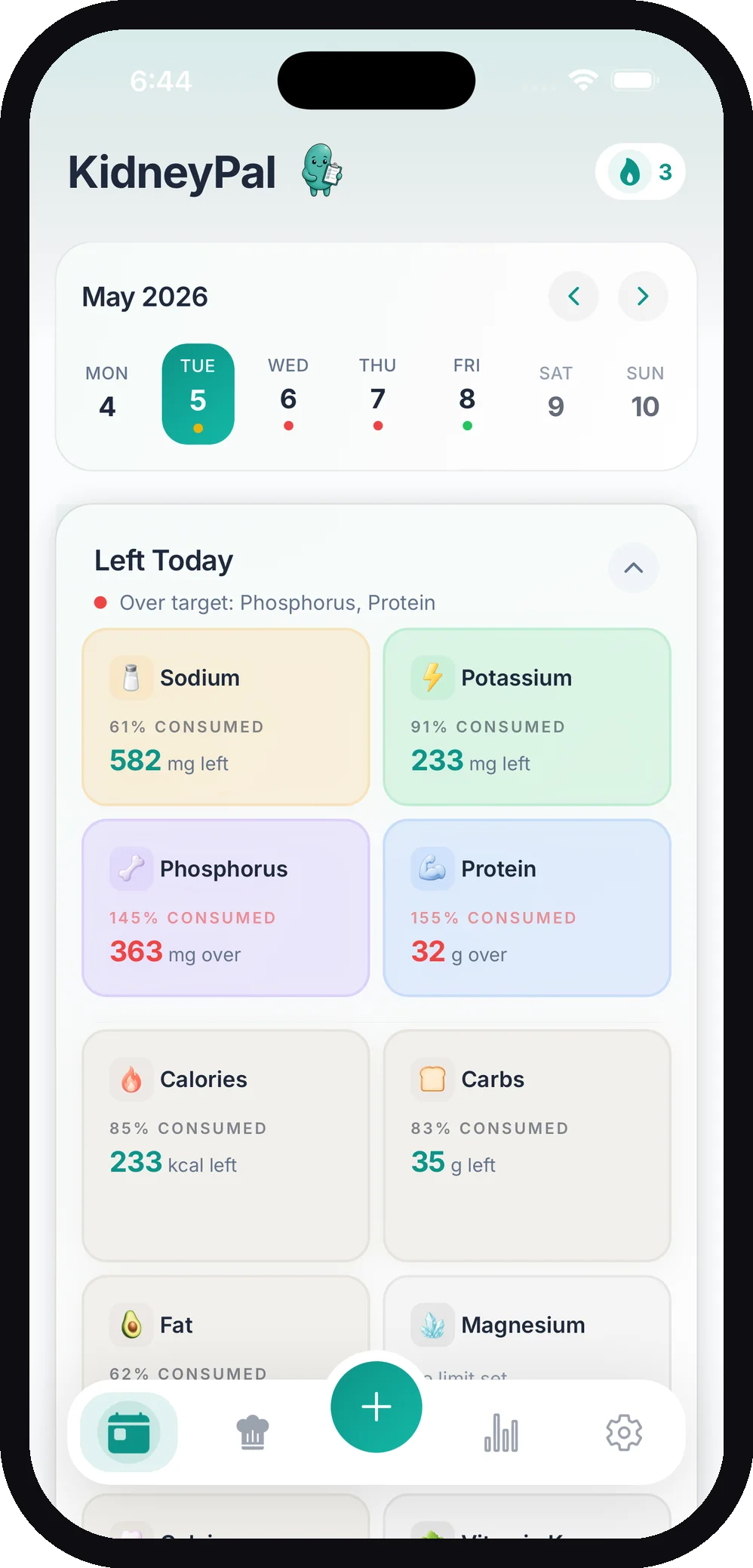
Your limits come from your kidney profile, and any custom numbers from your doctor always take priority. See how your limits are calculated.
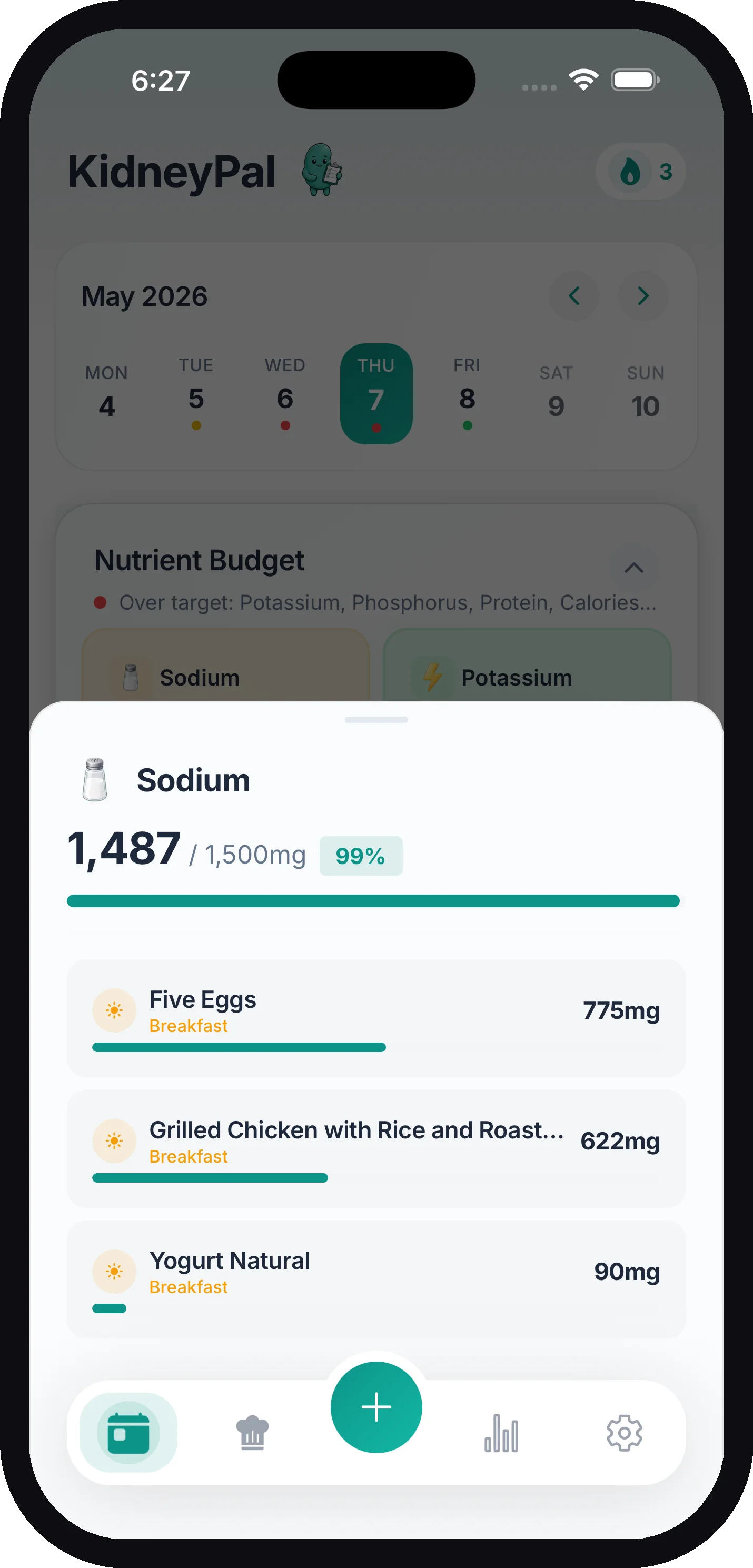
- Tap any nutrient to see exactly which foods contributed to it today — handy when you’re wondering where all that sodium came from. The list shows only the foods that contributed, biggest first; tick Show all foods to list every entry of the day in diary order instead, including those with 0 (a value that was never recorded shows as —). The switch stays on while you move between chips like Carbs, Sugars, and Fiber.
- Dig into carbs and fat. If you track them (see below), the Carbs breakdown has chips at the top to switch the view to Sugars or Fiber, and the Fat breakdown offers Sat. Fat. Each view shows the day’s total for that sub-nutrient and the per-food list, so you can see exactly where the sugar came from.
- Drill into a single meal or entry, too. Tap a meal’s header — Breakfast, Lunch, Dinner, Snacks — to open that meal’s totals, then tap a nutrient there to see which entries it came from, biggest first, each with its share as a percentage of the total. The same works one level down: open an entry and tap a nutrient on its totals card to see which foods inside it contributed.
- Tap the chevron on the dashboard to collapse it if you want more screen space.
KidneyPal Pro users can also track optional nutrients like calories, carbs, fat, magnesium, calcium, vitamin K, iron, and oxalate. Turn them on in Settings. If you get kidney stones, oxalate and calcium are shown first.
Iron only counts entries that have an iron value. Entries logged before iron tracking was added, and foods without an iron estimate, aren’t included, and a missing value is never counted as 0. When only some of the day’s entries have one, the iron card shows the total of those with a line like from 3 of 5 entries; a day where none of them do shows — with No iron data for this day. A meal’s summary shows the same line, and tapping the iron card on a day like that explains what’s left out.
The Meal Timeline
Below the dashboard, your day is organized into four meal sections:
| Meal | Time window shown |
|---|---|
| Breakfast | 6am – 10am |
| Lunch | 11am – 2pm |
| Dinner | 5pm – 9pm |
| Snacks | Anytime |
The time windows are just labels to help you organize — you can log any food to any meal, at any time of day.
Adding Food
Tap the + button on any meal section, or the big + button in the center of the tab bar. Either way, the Add Food sheet opens with six options, plus Plan my day below them:
| Option | What it does |
|---|---|
| Scan | Photo, label, barcode, or menu — learn more |
| Say or Type | Describe your meal with voice or text — Quick Log |
| Saved | Pick from your saved favorites (more below) |
| History | Search foods you’ve logged before and log them again — see Searching Your History |
| Recipes | Log a recipe from your library |
| Manual | Type in the nutrients yourself — handy if your dietitian gave you exact numbers. Includes a Fluid Amount field so drinks and liquid foods count toward your fluid tracker. If you save without typing any value at all, the app checks first, since the entry would add 0 to your day — tap Add anyway if that’s what you meant (a typed 0 counts as a value) |
| Plan my day | Meal ideas for the rest of today or a future day that fit your limits (Pro; not shown on past days) — see Plan My Day |
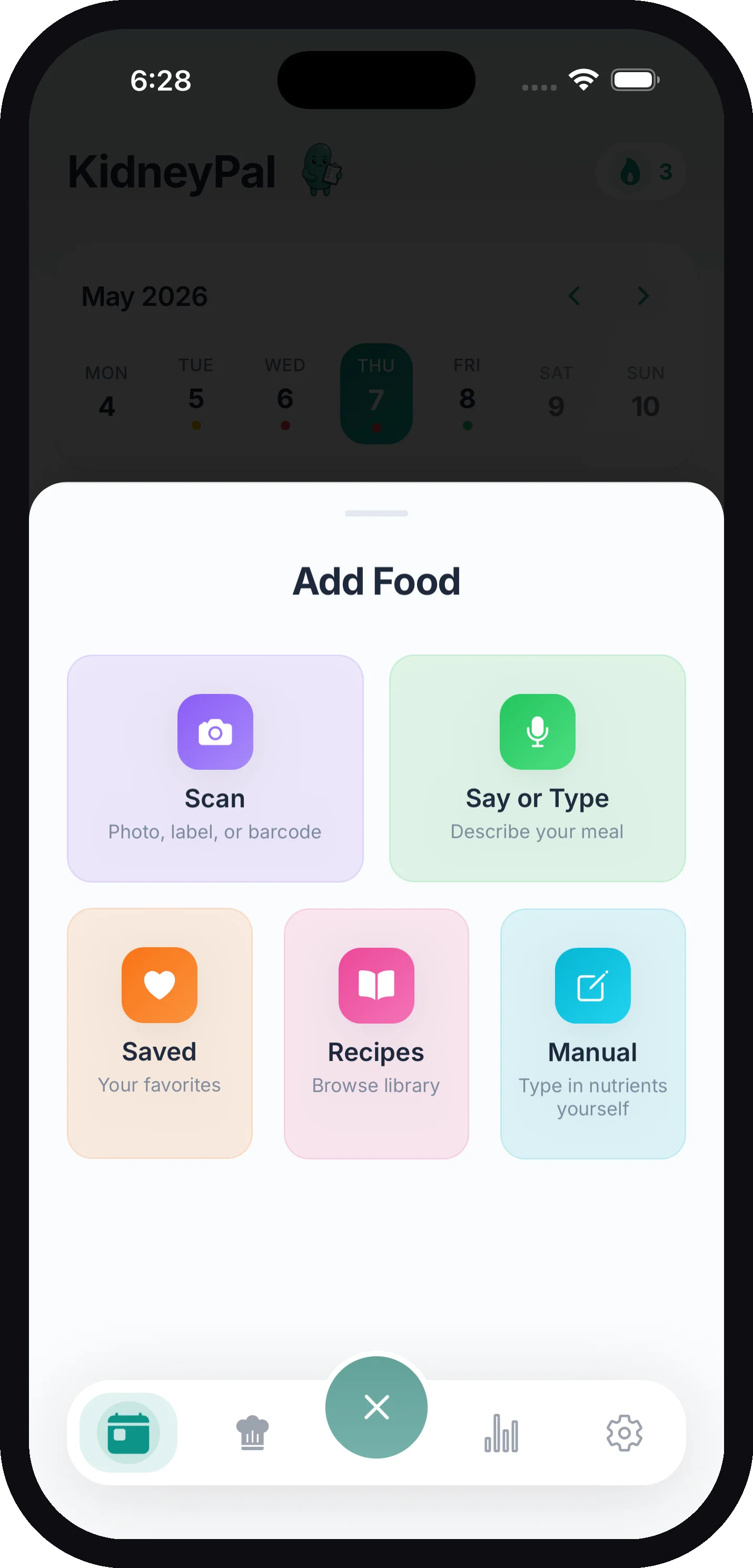
On the free plan, a line at the top of the sheet shows how many free analyses you have left today — for example 3 of 5 free analyses left today for Scan and Say or Type · Saved, Recipes and Manual are always free. See The Daily Analysis Limit.
Tip: The center + button turns into an × while the sheet is open. Tap it again to close.
Editing an Entry
Tap any entry to open it. What you can change depends on how it was logged:
- Scanned and AI-analyzed meals open a review of each detected food. You can adjust servings, remove items the AI got wrong, or update amounts. Removing or editing a food recalculates the entry’s Kidney Score, just like on a scan result; entries logged before this was added keep their score, marked Score is from the original scan.
- Other entries open an edit sheet where you can change the name, meal, serving size, or nutrient values.
Logged it under the wrong meal? In the analysis sheet, tap the meal chip beside Update Entry (it shows the current meal, like Dinner), pick Breakfast, Lunch, Dinner, or Snacks, and tap Update — the entry moves in place. The plain edit sheet has the same chip beside its Update Entry button. No need to delete it and log it again.
Voice- and text-logged entries also offer Add Photo in their ⋯ menu, so you can attach a picture of the meal after the fact — see Adding a Photo.
Changing servings scales all the nutrient values automatically. One serving means the full meal as it was analyzed — so if you only ate half, set it to 0.5 and everything is halved. You can use the − and + buttons, or tap the servings number itself and type an exact amount — like 0.33 for a third — on both mobile and web. In the app the buttons move a quarter serving at a time, and a line under them reminds you: Tap the number to type any amount, like 0.3.
The edit sheet also has a Fluid Amount field on every entry. Enter an amount to make a drink or liquid food count toward your fluid tracker, or set it to 0 to take it out.
Deleting an Entry
Two ways:
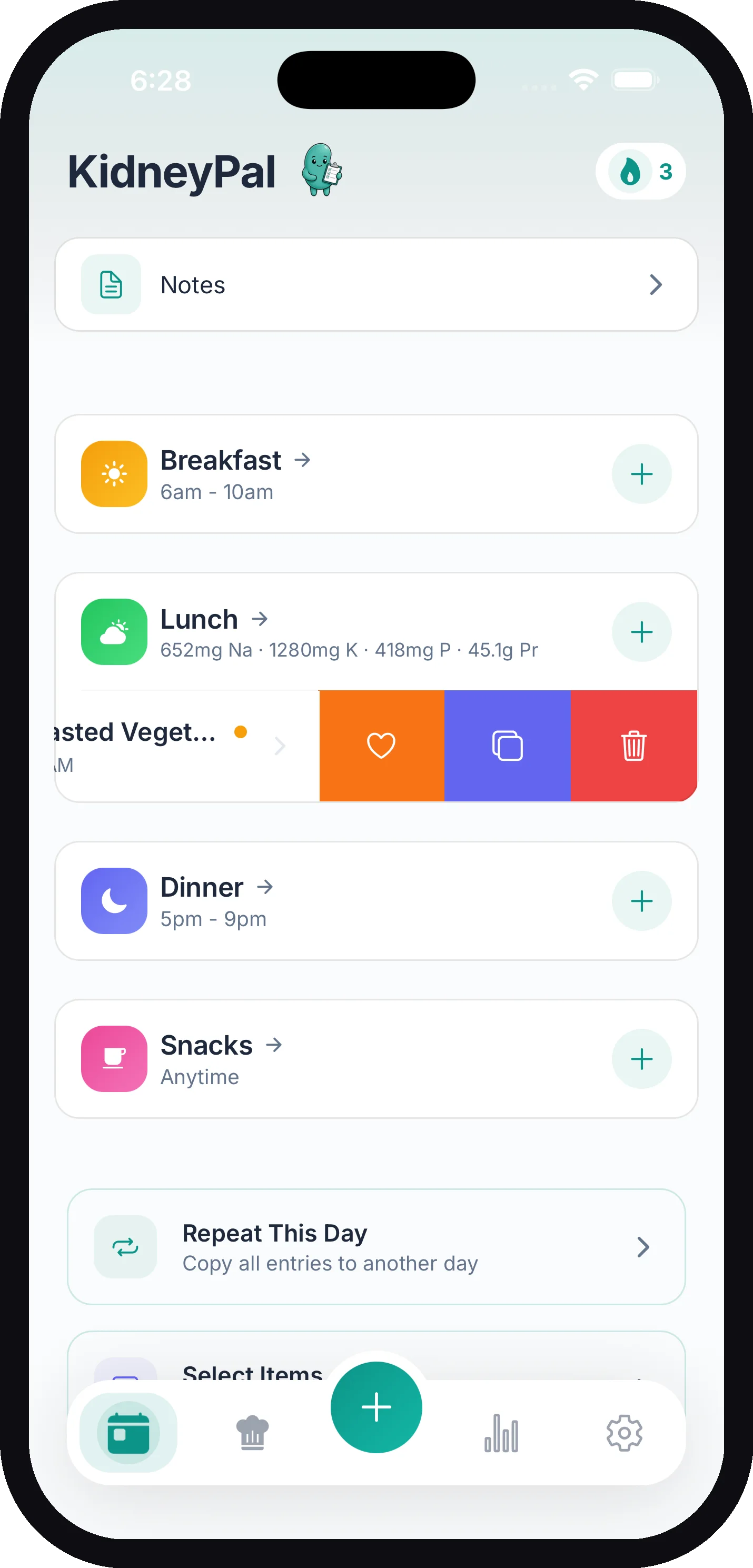
- Swipe left on the entry to reveal three quick buttons: a heart (save it as a favorite), a copy button, and a trash button to delete.
- Long-press an entry to enter selection mode, then tick off several entries and delete them all at once. You can also start selection mode with the Select Items button at the bottom of the diary.
Copying Meals and Repeating Days
Eat the same breakfast most days? No need to scan it again.
Copy a single entry
Swipe left on the entry and tap the copy button. Pick the day you want — Today, Tomorrow, or Pick a date — and optionally change the meal type. Done, nutrients and all. Copying to the same day works too — handy for logging a second serving, or sending lunch to dinner.
Copy a whole meal
To copy everything you logged at one meal — say, today’s breakfast to tomorrow — long-press the meal’s header (Breakfast, Lunch, Dinner, or Snacks) in the diary, or open the meal’s summary by tapping its header and tap the copy icon in the top-right corner. The Copy Breakfast sheet (named for the meal) works like copying a single entry: pick the day and, if you like, a different meal. Drinks logged with that meal, like a glass of water at breakfast, come along too; entries imported from Apple Health don’t. On the free plan, meals on days older than 7 days can’t be copied — full history requires KidneyPal Pro.
Copy yesterday’s meals
Open a day with nothing logged yet and the empty diary offers a Copy yesterday’s meals button. One tap copies every meal and drink from the day before into the day you have open, and a message confirms how many entries were copied (or says Nothing logged yesterday if there was nothing to copy). Entries imported from Apple Health and daily notes aren’t copied. The button only appears while the day is empty, so it can’t copy twice.
Repeat a whole day
At the bottom of your diary, tap Repeat This Day to copy every entry from the current day to another day. You’ll see how many entries will be copied, and an Include water intake toggle if you want your fluids to come along too.
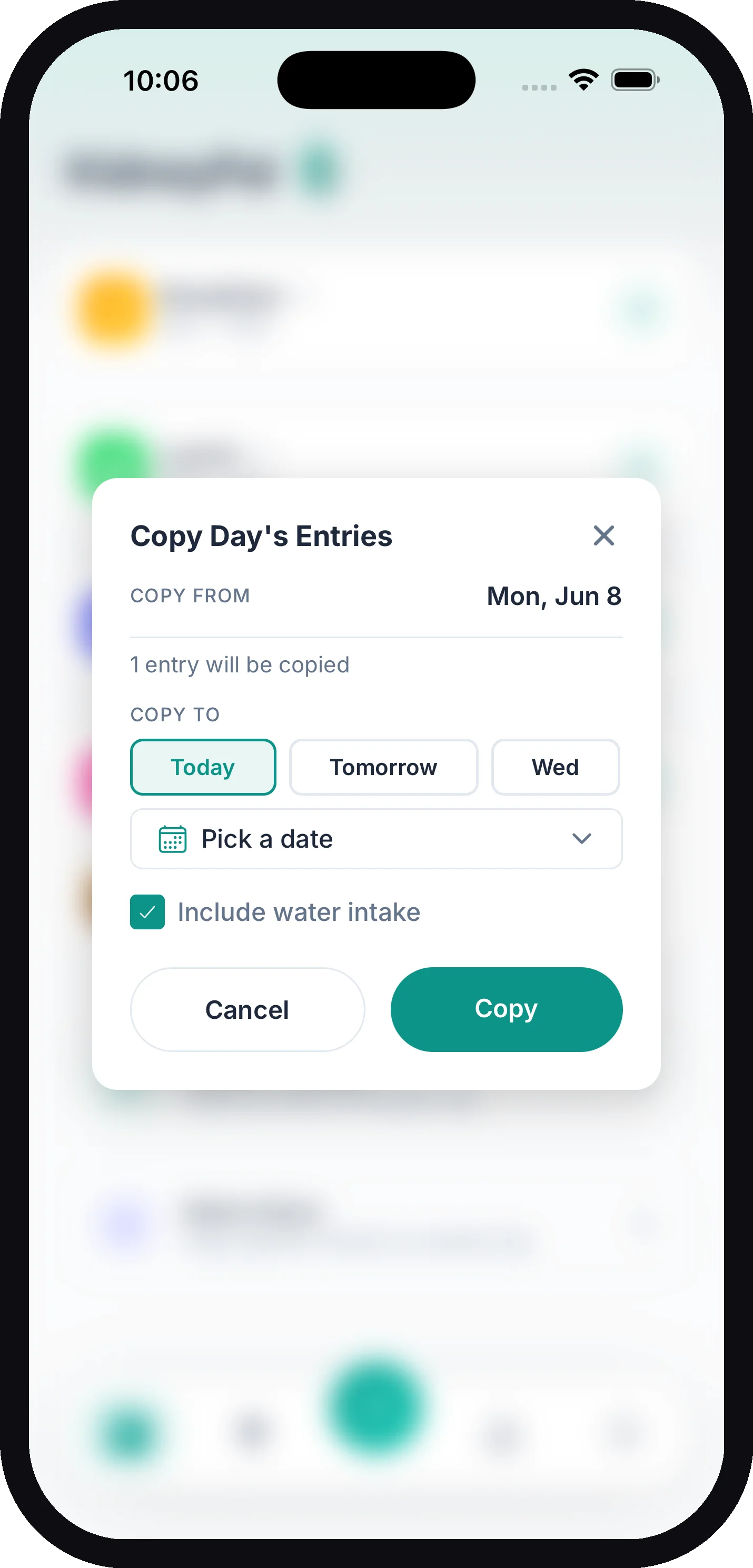
Copy several entries at once
Long-press an entry (or tap Select Items), select the ones you want, then tap Copy in the selection bar. Pick the destination day and, if you like, a meal type — leave it unset and each entry keeps its own meal.
Saved Foods
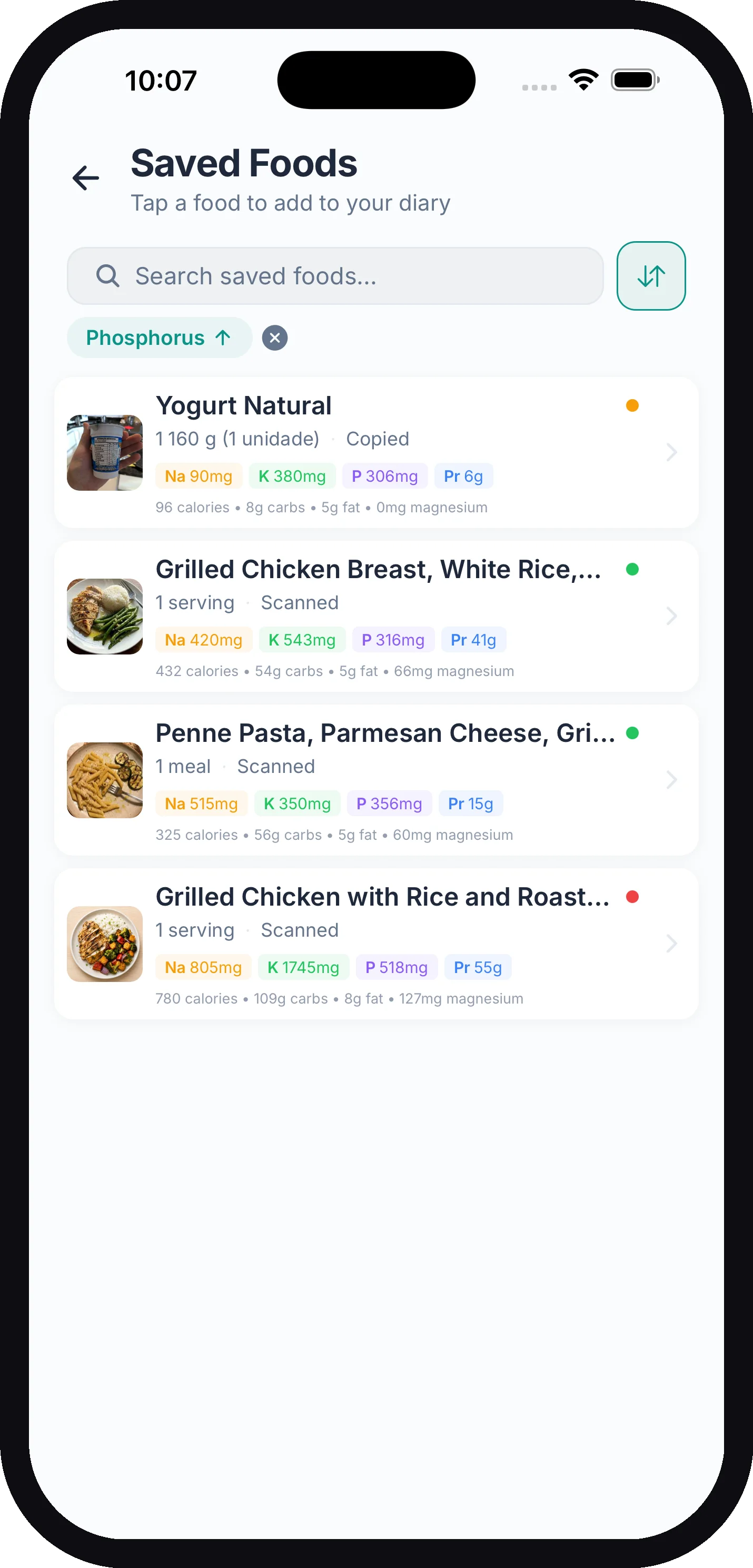
Every time you tap the heart on a diary entry, it’s saved to your Saved Foods library. Next time you eat the same thing, tap Add Food → Saved and pick it — one tap and it’s logged with all the correct nutrients. Saved Foods is free for everyone.
In the Saved Foods screen you can search your list, sort it ten ways (from Recently Added and Most used to Sodium or Potassium), group it by meal time into breakfast, lunch, dinner, and snacks or by category into grocery-style buckets (Produce, Meat & Fish, Breads & Grains, …) with quick filter chips, long-press to add several foods to a meal at once, and combine foods you always eat together into a single favorite. New saves get a best-guess category automatically; change it any time via multi-select → ⋯ → Set category. To get your library into a spreadsheet, tap the share icon at the top of Saved Foods — see Exporting your saved foods. See Saved Foods for the full tour.
Searching Your History
Ate something a few weeks ago and never saved it? You don’t need to scan it again. Tap Add Food → History to open Search My Entries — a search across everything you’ve ever logged, not just your saved foods. (There’s also a Search everything you’ve logged link at the bottom of the Saved Foods screen.)
- Search by food or ingredient. Type in the Search foods you’ve logged… field. Matching checks the entry name and the names of the individual foods inside it, so searching “avocado” finds the “Turkey sandwich” that had avocado in it. Accents don’t matter — “olivenol” finds “Olivenöl”. Before you type anything, the list shows your recent foods, so it doubles as a “what did I eat lately” browse.
- Repeat logs are grouped. Each food appears once, with a Logged N times · Last logged … line. Tap that line to expand a list of every day and meal you ate it.
- Tap a food to open the full review sheet — the same one you get when opening a scanned meal — where you can check the nutrient breakdown and adjust servings before adding it.
- Swipe a food sideways to reveal two quick actions: a + that adds it in one tap (you’ll pick the meal, then confirm Add to Diary) and a heart that saves it to — or removes it from — your Saved Foods.
Either way, the food is added to the day you currently have open in your diary, not automatically to today, and the new entry keeps the source of the original — a scanned meal stays a scanned meal, with its per-food detail intact. Tap the ? in the top corner for a quick reminder of these gestures.
Water and other drinks from the Fluid Log aren’t included in History, and neither is water imported from Apple Health — but soups, sauces and drinks you logged as food are. Search covers your most recent 500 food entries and your most recent 300 entries with liquid volume.
Moving Between Days
The week calendar strip at the top of your diary shows the current week:
- Tap any day to jump to it. Today has a ring around it.
- Use the arrows to move back and forth a week at a time. You can’t move into the future beyond today.
- The colored dots under each day give you a quick report card: green means every tracked nutrient stayed within limits, yellow means one went over, red means more than one went over, and gray means nothing was logged. Each day is graded against the limits that applied on that day — change a limit today and your older days keep their own colors. See When Your Limits Change.
Yes, you can log meals to past days — just navigate to the date and add entries as usual.
Note: Free accounts can view and edit the last 7 days. Older days show a summary with an Unlock Full History option — full history requires KidneyPal Pro.
Daily Notes
Want to jot down how you felt, a symptom, or a reminder for your next appointment? Tap the Notes card and write a note for that day. Your notes appear in a timeline on the Progress tab — see Progress & Insights.
Your Streak
The flame badge at the top of your diary counts how many days in a row you’ve logged at least one entry. Tap it to see your current streak, your best streak, and your next milestone. Planning ahead counts too — copying today’s meals to tomorrow credits tomorrow toward your streak right away.
You’ll get a little celebration at 3, 7, 14, 30, 60, and 100 days. If your streak breaks, no worries — your longest streak is saved separately, so your record lives on. There’s also an optional evening reminder to protect your streak — see Notifications.
Streak Freezes
Missing a day no longer resets your streak automatically. Each calendar month you get two streak freezes, applied for you — miss a day, then log as usual, and a freeze quietly covers the gap so your streak keeps counting. Frozen days show a small snowflake on the week calendar and still count toward your total. Freezes aren’t banked — unused ones don’t carry over to the next month — and if you miss more days than you have freezes left, the streak resets as before. Freezes work exactly the same in KidneyPal on the Web.
Weight, Blood Pressure, Activity, and Binders
A row of quick-log tiles sits below the fluid tracker — tap a tile to log, long-press it to open that metric’s full history:
- Weight — log today’s weight in seconds; the tile shows it once logged. See Weight Tracking.
- Blood Pressure — log a reading (systolic, diastolic, and optional pulse); the tile shows the day’s latest. See Blood Pressure Tracking.
- Activity — log a workout; the tile shows the day’s total minutes and calories. The logging sheet also has a View History link at the bottom that opens your full activity history. See Activity Tracking.
Below the tiles, if you take phosphate or potassium binders, the Binder Tracker card tracks your doses right from the diary (requires KidneyPal Pro). See Binder Tracker.
Until you choose your tiles yourself, a + More tile fills an empty spot in the row whenever some tiles are hidden — tap it to open Settings → Optional Tracking and pick which ones show (glucose, blood oxygen, and labs have tiles too). See Optional Tracking.
And right below the nutrient dashboard sits your fluid tracker — that one gets its own page: Tracking Fluids.