
This is the heart of KidneyPal. Snap a photo of your food, and in a few seconds you’ll know how it fits into your kidney diet — no label reading, no guesswork.
When to Use Photo Scanning
Photo scanning is best for plated food: home-cooked meals, restaurant dishes, takeout, anything sitting in front of you. For packaged foods with a nutrition label or barcode, use Label or Barcode mode instead — those give more precise numbers. Still deciding what to order? Menu mode ranks a restaurant menu for your profile before the food arrives. And if there’s nothing to photograph (you already ate, or you’re logging from memory), use Quick Log.
How to Scan
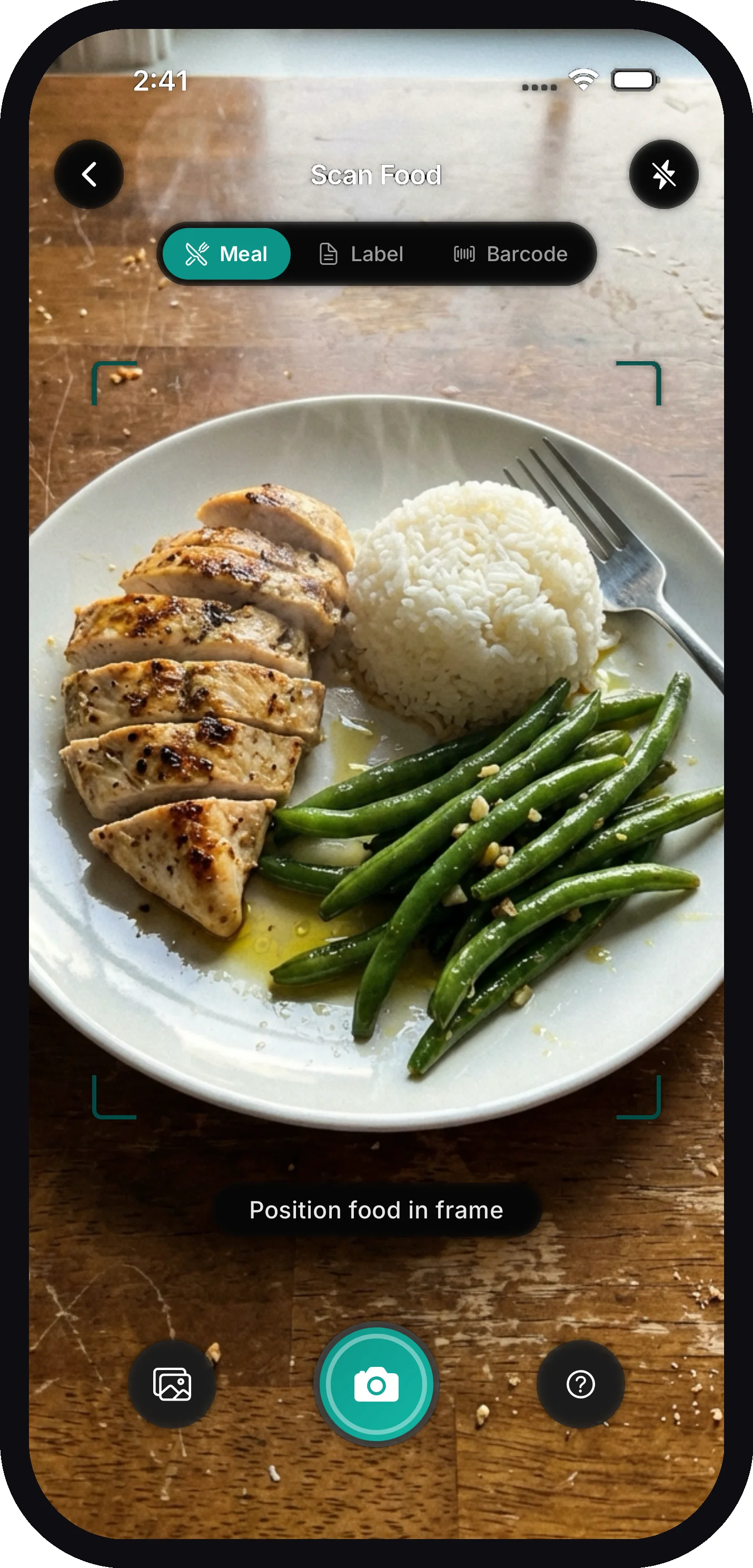
- Tap the camera icon at the bottom of your screen. Meal mode is selected by default.
- Point your phone at your plate and tap the big capture button.
- Check the preview — Make sure your meal is clearly visible — then tap Continue (or Retake if it’s blurry).
- Wait a few seconds while the AI analyzes your meal.
You can also tap the gallery button to analyze a photo you’ve already taken, and the flash button helps in dim restaurants.
Taking a Good Photo
A better photo means better numbers. The in-app tips say it best:
- Ensure good lighting
- Center the food in frame
- Keep the camera steady
- Include all items in your meal
A roughly top-down angle also helps the AI judge portion sizes. If the AI says it can’t detect food, the photo was probably too dark or blurry — try again with more light.
Understanding Your Results
After a scan, you land on the Meal Analysis screen. Here’s what everything means.
The Kidney Score
The big number is your Kidney Score (0–100). Lower is better:
| Score | Label | Color |
|---|---|---|
| 0–30 | Kidney Safe | Green |
| 31–60 | Moderate | Amber |
| 61+ | High Burden | Red |
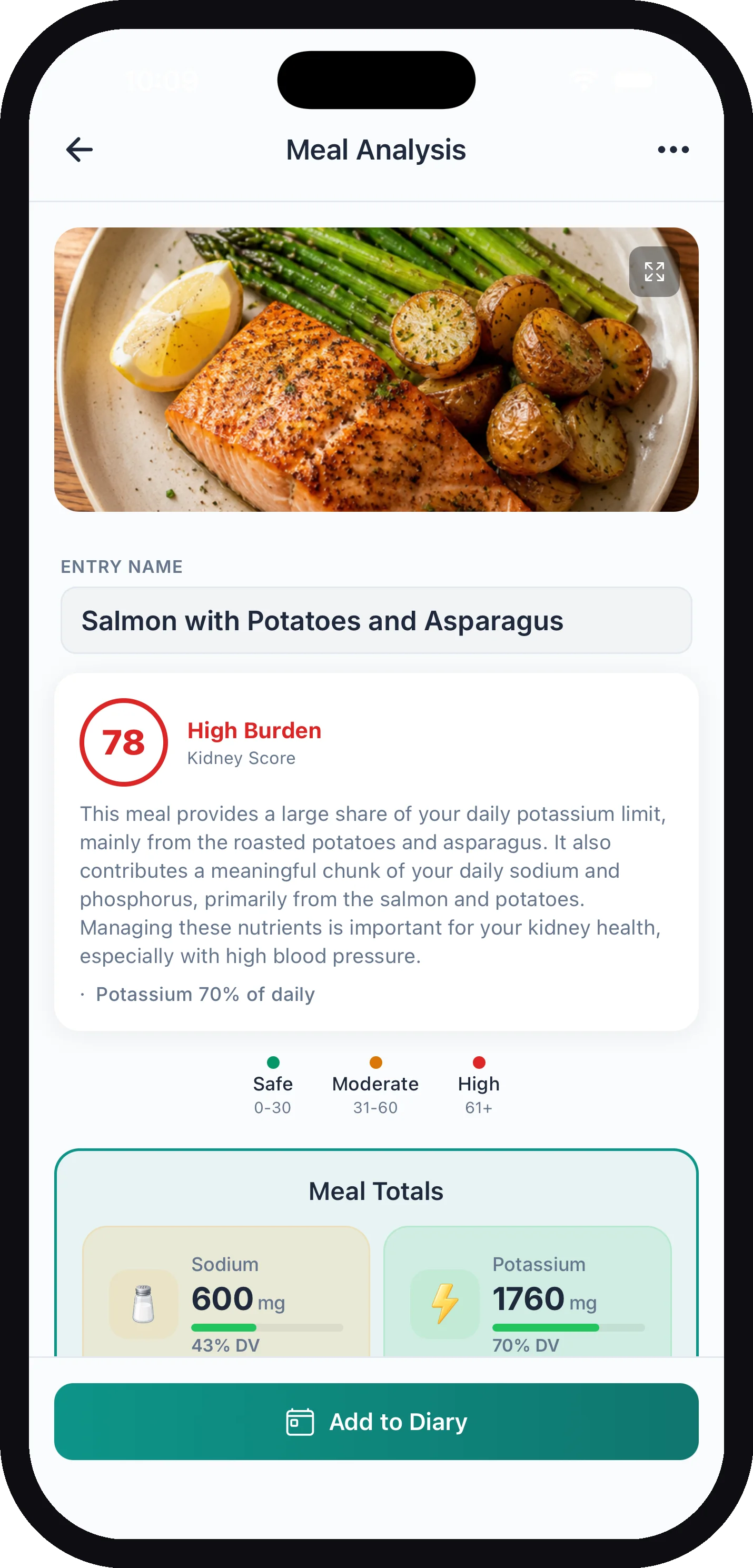
The same three levels show up as plain-language verdicts throughout the app: Kidney-safe meal, Moderate risk - watch portions, and High kidney burden. Below the score you’ll see a short explanation of why the meal scored the way it did. If you’ve set a larger text size on your phone, the explanation, the Pro Tip, Smart Swaps, and chat messages grow with it.
The score is personalized to you. The same meal can score very differently for someone in early CKD versus someone on dialysis, because it’s judged against your own limits — see How Your Nutrient Limits Work.
A gentle note: one food overrides everything — star fruit (and its relative bilimbi). It contains a natural toxin that’s dangerous for people with kidney disease even though its nutrient numbers look harmless, so KidneyPal always scores it 100 and flags it as one to avoid, no matter how it’s prepared. This is one warning worth taking seriously — talk to your care team about it.
Meal Totals
The Meal Totals card shows the meal’s sodium, potassium, phosphorus, and protein (plus any optional nutrients you’ve turned on). Each one is shown as a percentage of your daily limit, color-coded green, amber, or red. Tap any nutrient to see which of the identified foods it came from, ranked highest first with a bar and ”% of total”; tap it again to close, or tap another nutrient to switch. If the meal contains fluids (soup, coffee, a drink), the fluid amount shows too and counts toward your fluid limit.
If you track oxalate (a Pro optional nutrient that’s on automatically for kidney-stone profiles — see Optional Nutrients), every meal, label, and barcode analysis includes an oxalate estimate alongside the other values. Oxalate is shown for information only and never changes the Kidney Score.
As the card itself notes: Values are AI estimates and may vary.
Identified Foods
Each food the AI spotted gets its own card with an estimated portion, its nutrient values, and a safety badge: Safe, Moderate, or Limit. The badge judges that food’s own portion against your daily limits, so a food that is high on its own gets a warning tag like High potassium for this amount — the same food in a smaller portion can be Safe.
A food can be fine on its own and still be where most of a meal’s problem comes from: a moderate portion of beef next to rice and vegetables can make a whole meal Moderate for protein. So in a Moderate or High meal, KidneyPal finds the food that supplies most of the nutrient driving the score (sometimes two foods share it). If that food is Safe on its own, it’s shown as Moderate, with the tag Main protein source in this meal (or potassium, phosphorus, or sodium). A Kidney Safe meal never shows a Moderate food this way. This tag follows the score you see: edit the meal down to Safe and it goes away. It isn’t shown when the score is marked Score is from the original scan, and food lists in your diary keep each food’s own badge.
If you’re on dialysis, protein is a daily goal rather than a limit (unless your dialysis type is Starting soon). A protein-rich food is never tagged as the main protein source, and a food that covers a big part of your day’s protein reads Much of your daily protein goal instead of a warning. Star fruit is always tagged Toxic for kidneys — do not eat.
Smart Swaps
For a Moderate or High meal, Smart Swaps suggests kidney-friendlier alternatives with the impact shown — for example, swapping one ingredient to cut a chunk of potassium, tagged Easy swap or Worth it. A Kidney Safe meal (0–30) gets no swaps: you’ll see Great Choice! instead. Swaps follow the score you see, so if you edit a meal and it drops into the Safe range, its swaps go away (and they’re left out when you share the analysis). When the score is marked Score is from the original scan, swaps are hidden.
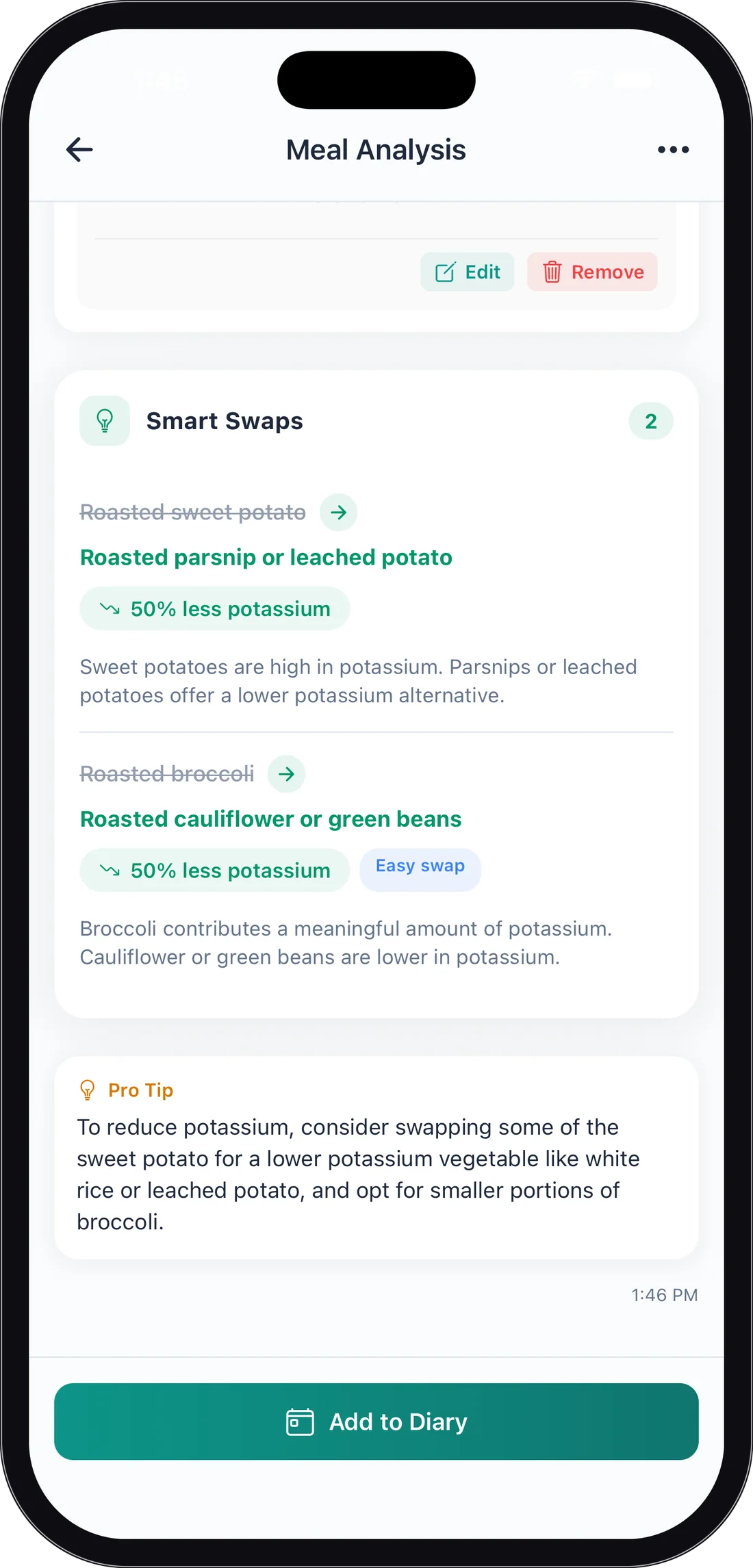
Full Smart Swaps require KidneyPal Pro — free users see a locked preview. The same lock shows when you open a logged meal from your diary.
Pro Tip
At the bottom, the Pro Tip section gives one practical, personalized suggestion for this specific meal. This one’s free for everyone.
Prefer a simpler result? Turn off Swap ideas and tips in Settings → Meals & Recipes to hide Smart Swaps and the Pro Tip.
Fixing the Results
The AI is good, but it can’t see inside a casserole. You’re always in control:
- Wrong food? Tap Remove on that food’s card to delete it. Totals update automatically.
- Wrong portion or values? Tap Edit to adjust the quantity, unit, or any nutrient. As the app says: “These are estimates. Adjust if you know exact values.”
- Changing the unit converts the numbers. If the unit is a measure — tsp, tbsp, fl oz, cup, ml, or g, oz, lb — tapping it opens a short list of the units it can be converted to, each showing its factor (tbsp ×3, cup ×48, ml ÷4.9). Pick one and the quantity stays put while the nutrients are rescaled: change 2 tsp to 2 tbsp and everything triples. A line under the quantity says what happened (“tsp → tbsp: nutrients ×3”) with a Reset that puts the item back exactly as you opened it. Volume never converts to weight, because that would need the food’s density. If the unit is a count word (piece, serving, medium…) there is nothing to convert to, so it stays a plain text box and you adjust the quantity instead. Changing the quantity itself scales the nutrients, as it always has.
- The Kidney Score follows your edits. Remove a food or change an amount and the score, its color, and the food badges are recalculated from the new numbers. The written explanation stays the one from the original scan, so a caption under it reads Written before your edits · the score above is updated. Changing Servings doesn’t change the score — it’s per serving, and the card says Score is per serving. Meals analyzed before this update can’t be recalculated: after an edit they keep their score, marked Score is from the original scan, with a Re-analyze to update link on this screen when the meal can still be re-analyzed.
- Wrong food altogether? Under photo, label, and Quick Log results, tap Not right? Tell us what it is, type what it really is (like “grilled salmon, not chicken”), and the meal is analyzed again with your correction.
- AI missed context? Open the ⋯ menu and choose Re-analyze with details — the Meal Analysis menu below walks through it.
- Rename the entry using the Entry name field so it reads nicely in your diary.
Logging It to Your Diary
- Use the Servings control if you won’t eat the whole plate — 1 serving means the full meal as analyzed, so set it to 0.5 for half, or 2 for double. You can step with the − / + buttons, or tap the number and type an exact amount (like 0.33). All nutrients scale automatically.
- Tap Add to Diary.
- Pick the date and meal (Breakfast, Lunch, Dinner, or Snacks), then confirm.
The nutrients are added to your daily diary totals right away.
The Meal Analysis Menu
Some of KidneyPal’s most useful tools live behind one button that’s easy to miss. Tap the ⋯ in the top-right corner of any Meal Analysis screen to open its menu.
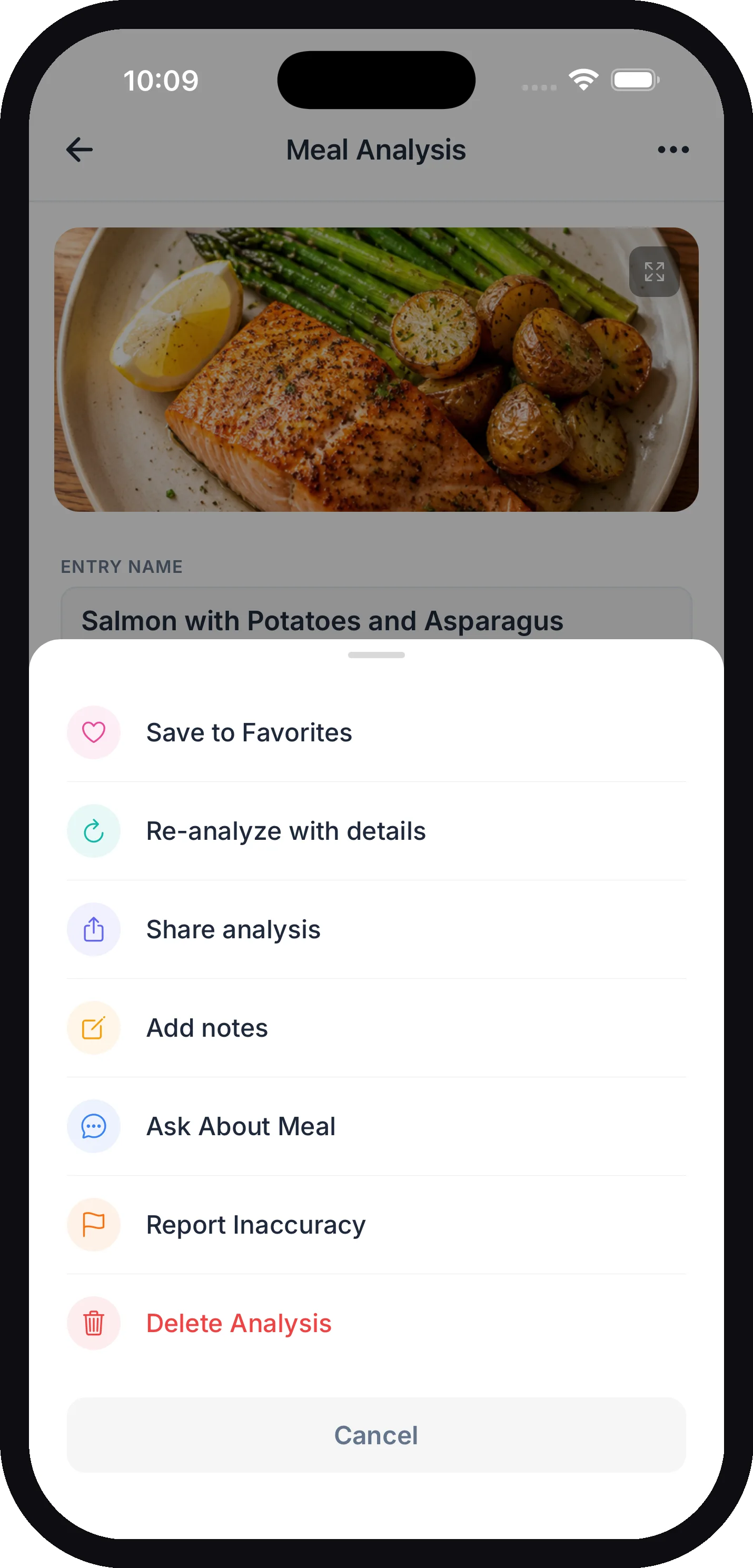
Here’s what each option does:
| Option | What it does |
|---|---|
| Save to Favorites | Saves the meal to your Saved Foods so you can re-log it in one tap. Tap again to remove it. |
| Re-analyze with details | Re-runs the analysis with extra context you provide — see below. |
| Share analysis | Opens your share sheet to send the results to someone, like a family member or your dietitian. |
| Add notes | Saves a private note about this meal — see below. |
| Ask About Meal | Opens a chat to ask the AI anything about this specific meal — see below. |
| Report Inaccuracy | Flags an analysis that looks wrong so a real person can review it — see below. |
| Delete Analysis | Removes this saved scan and its analysis — see below. |
On label and barcode scans the menu also includes Add Ingredients Photo, for adding the ingredients list to an existing analysis. See Label & Barcode Scanning.
Re-analyze with Details
The AI can’t see inside a casserole or know that you rinsed the canned beans. If it missed something, choose Re-analyze with details, type what it should know, and tap Analyze for an updated score and nutrient breakdown. Useful details include “low-sodium version,” “rinsed canned beans,” or “no salt added in cooking.” Your note is treated as the truth: name a food that isn’t in the photo (“plus one banana,” “with 2 tbsp olive oil”) and it’s added as its own item; correct a quantity (“100 g, not one serving”) and every nutrient is rescaled; say you didn’t eat something and it’s dropped. This works the same on label and barcode results.
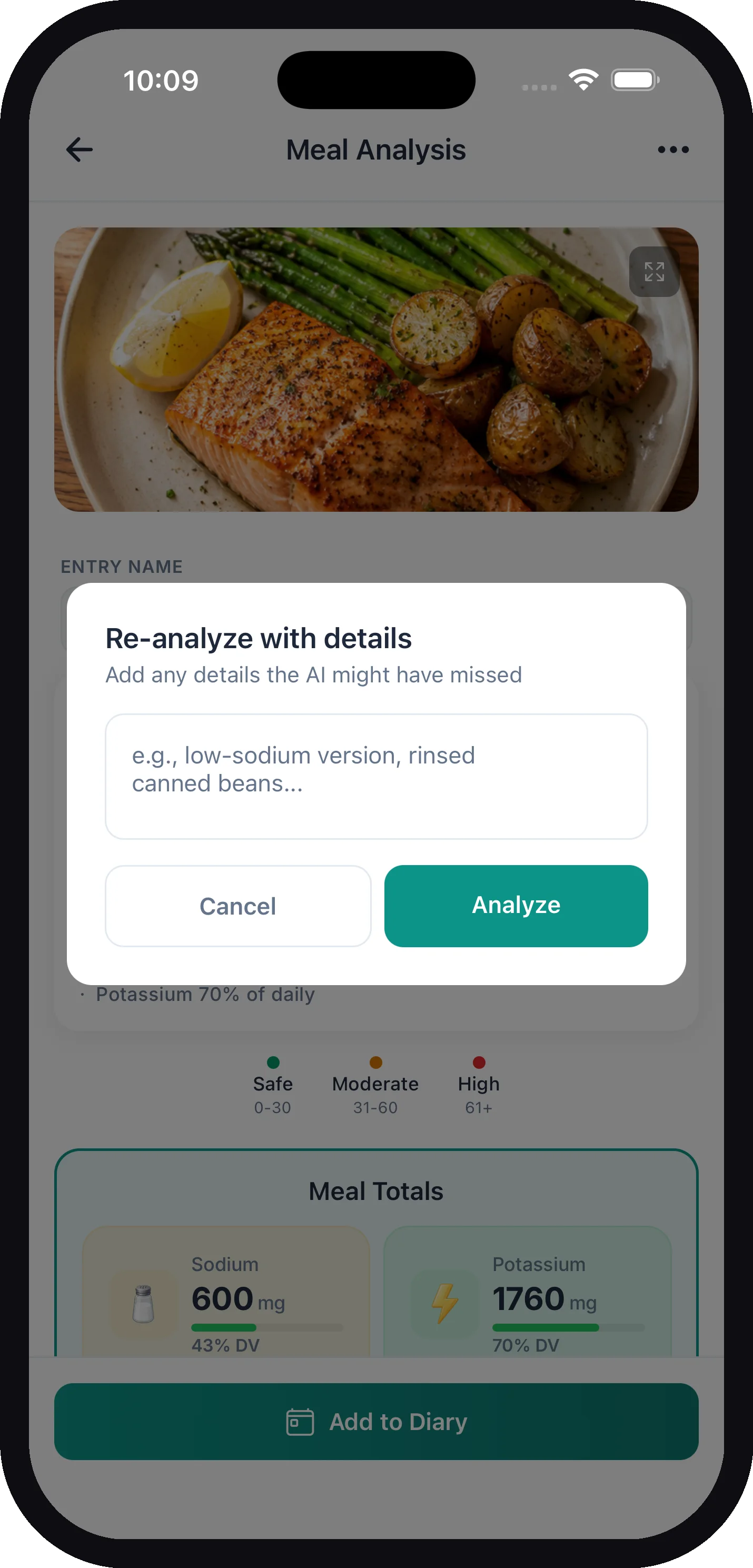
Tip: Re-analyzing the same meal doesn’t use up another daily analysis — only brand-new scans count. Each meal can be re-analyzed up to 3 times (with details or through Not right?); after that, start a new scan or log.
Save to Favorites
Eat this meal often? Tap Save to Favorites and it’s stored in your Saved Foods library, so next time you can log it in one tap from the diary — no new scan needed. See Your Daily Diary.
Add Notes
Choose Add notes to jot a private note about this meal — something like “felt good four hours later, no swelling.” It’s a simple way to connect what you eat with how you feel, which can be genuinely useful to share at your next appointment.
Ask About Meal
Choose Ask About Meal to chat with the AI about this exact dish. It knows your kidney profile, so the answers are personalized. Try questions like “Is this safe for my CKD stage?” or “How can I reduce the sodium?”
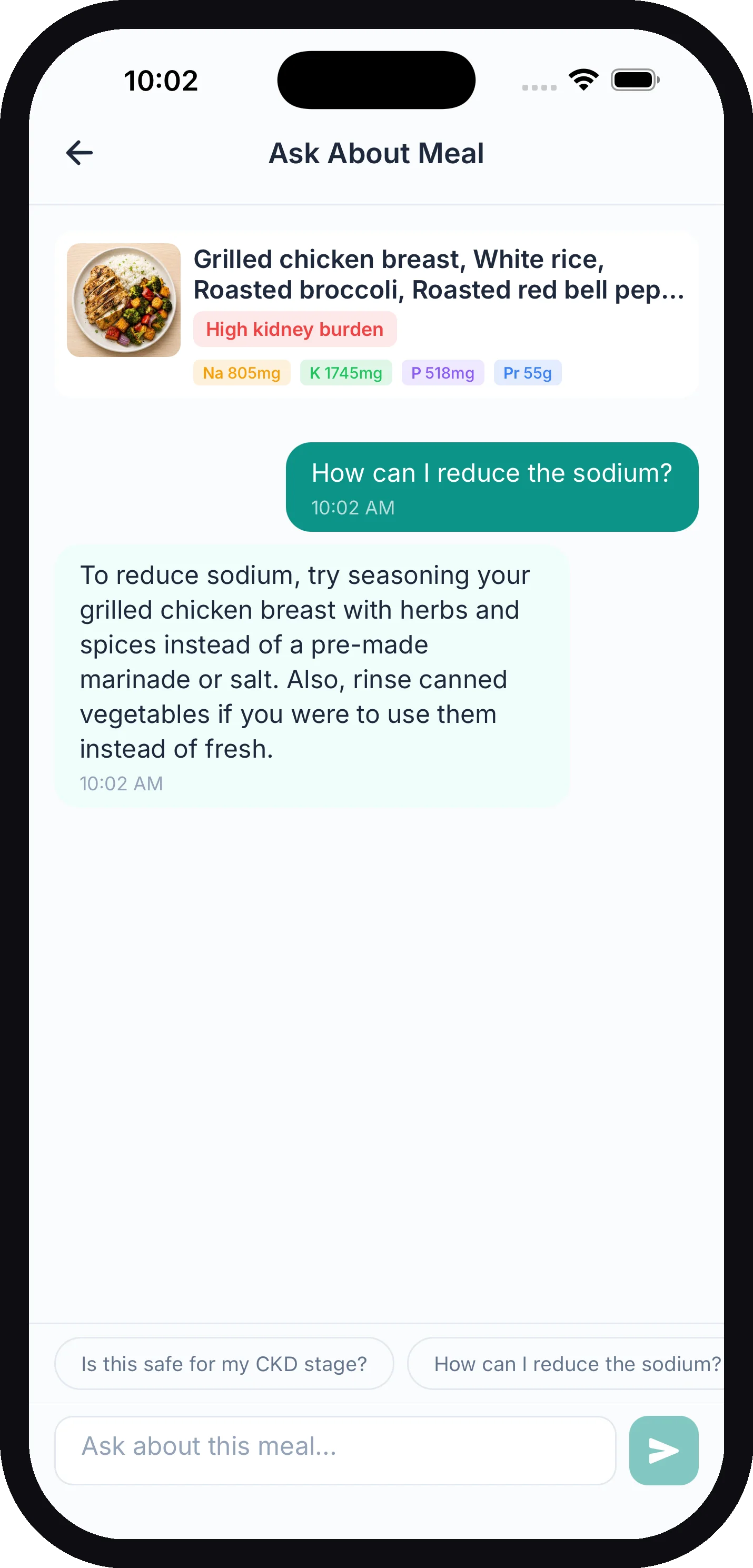
Free accounts get 2 questions per meal (the screen shows how many you have left). KidneyPal Pro removes the limit.
Report an Inaccuracy
If something looks clearly wrong — say, the sodium is way off for a food you know well — choose Report Inaccuracy, describe the problem, and tap Submit Report. Real people review these reports and they genuinely help improve the analysis.
Delete Analysis
Delete Analysis removes this saved scan and its analysis. If you already tapped Add to Diary, that diary entry stays put — deleting the analysis only clears the saved scan, not your logged nutrients. To take something out of a day’s totals, delete it from your diary instead.
The Daily Analysis Limit
Free accounts get 5 AI analyses per day, shared across photo scans, label scans, barcode scans, and Quick Log. Menu scans use the same allowance. The counter (“5/5 analyses left”) shows on the camera screen, and the Add Food sheet shows how many are left before you pick Scan or Say or Type. It resets at midnight local time.
Only an analysis that succeeds counts. A scan that fails, a photo with no food in it, or a barcode that isn’t in the database doesn’t use one up. KidneyPal Pro gives you unlimited analyses — see Subscription & Billing.
When you’ve used all five, trying another analysis shows a prompt with your options: upgrade to Pro, or tap Log without AI to jump straight to the free ways to keep logging — manual entry, saved foods, and recipes never count against the limit.
How Accurate Is It?
Honest answer: photo scans give informed estimates, not lab values. They’re excellent for knowing whether a meal is generally safe or risky and which ingredient is the concern — but exact milligrams from a photo are approximations. Sauces, salt added in cooking, and hidden ingredients are invisible to a camera.
For packaged foods, label and barcode scanning is more precise. And if a number looks surprising, sanity-check it: tap Edit to fix values you know, or re-analyze with details. Most importantly, the limits that matter are the ones your doctor or dietitian gave you — KidneyPal helps you track against them, it doesn’t replace them.